
This article explains how to view patient information, and add clinical images from the patient summary.
Patient summary screens
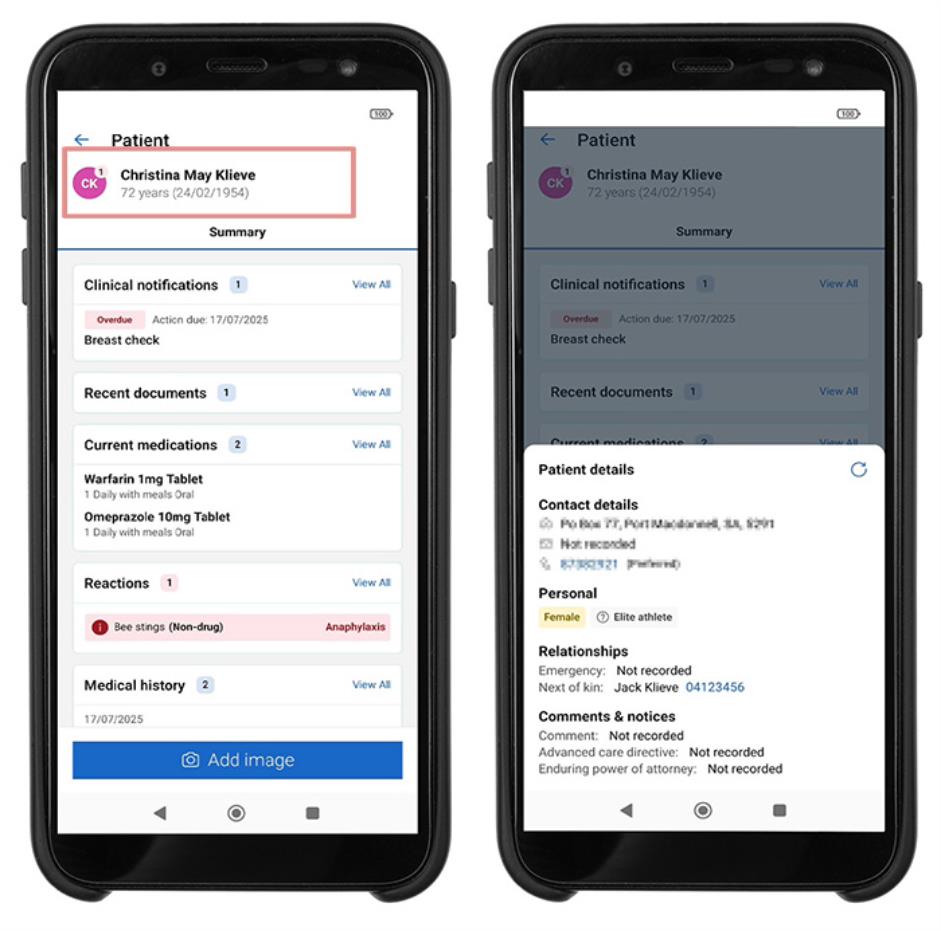
The patient summary screen displays:
- Clinical notifications – Actions and Reminders
- Recent documents – Inbox, Investigations and Correspondence
- Current medications
- Reactions
- Medical history – Active and Inactive conditions
- Past consults
- Appointments.
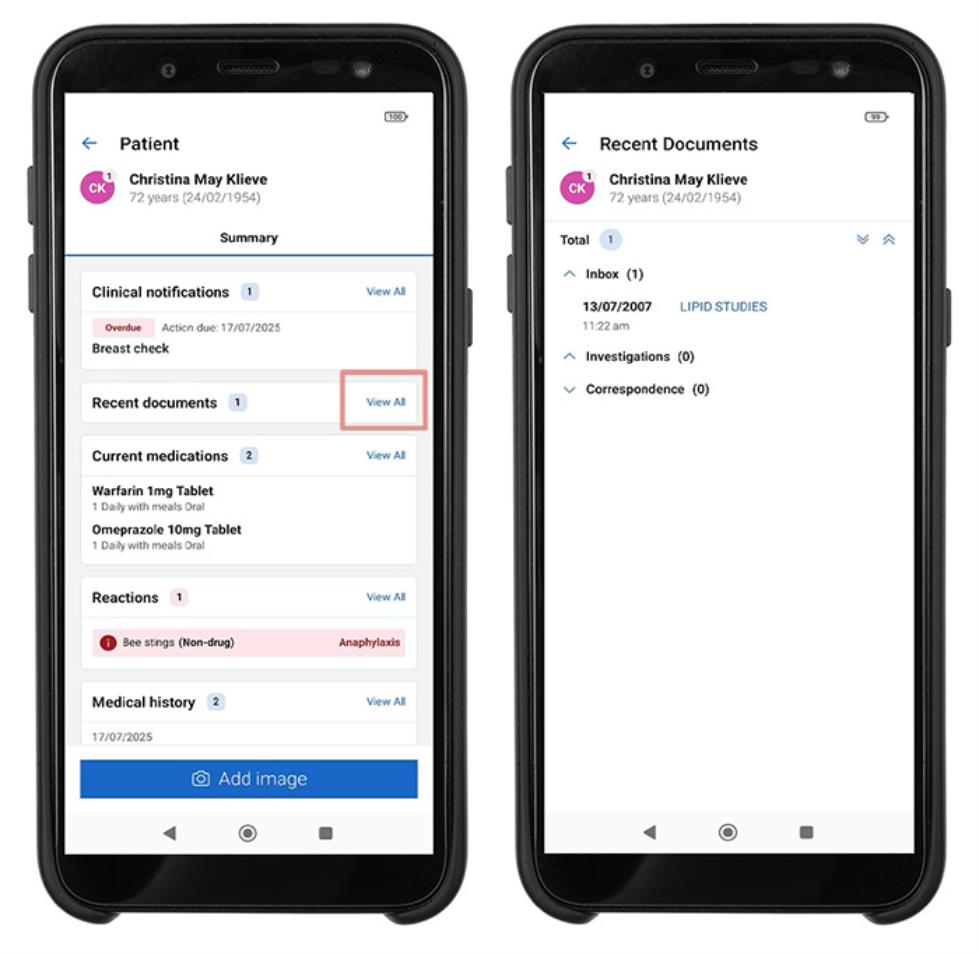
Select View All next to a heading to open the corresponding screen.
Tap the patient's name to view Patient details. Tap the Add Image button to take clinical images. See Taking Clinical Photos for more information.
View recent documents
- From the patient summary, click View all next to Recent documents.
- Expand the Inbox, Investigations or Correspondence heading to view the list of documents, or Expand all.
- Click on a document title to open a preview.
Last updated: 15 September 2026



 AU
AU 