
This guide explains how to complete the Sender ID Registration form provided by Best Practice Software. The form collects the information required for Best Practice Software to register your practice’s Sender ID with the ACMA and our telecommunications provider for use in Bp Premier.
IMPORTANT If your business has more than one ABN listed with the Australian Business Register (ABR), you won’t be able to complete these forms. Contact the Account Management Team on 1300 40 1111 before proceeding.
TIP We recommend reading the Frequently Asked Questions section at the bottom of this article for more information that can assist you in completing the Sender ID Registration Form successfully.
In this article:
- Why am I completing these forms?
- Five simple steps to Sender ID success
- Helpful links
- Which instruction should I follow?
- Before you begin
- My Practice does not use Bp Comms
- My Practice uses Bp Comms and needs to register a Sender ID
- My Practice uses Bp Comms and we need to register with the ACMA
- Frequently Asked Questions (FAQs)
Why am I completing these forms?
From July 1st, the Australian Communications and Media Authority (ACMA) require businesses that send SMS messages to register their Sender ID (also called an alpha tag) with the ACMA SMS Sender ID Register. If you send SMS messages other than appointment reminders, or you intend to obtain an Assignment of Benefit by SMS from 1 July 2026, you will need to create an ACMA Assist portal account and verify your business identity.
Five simple steps to Sender ID success
|
Step 1: |
You will receive an email from Best Practice that contains a link to a form that you must complete and submit to Best Practice Software. |
|
Step 2: |
A member of the Customer Experience team will contact you if there is a problem with any information provided in the form. |
|
Step 3: |
If the Customer Experience team does not need to contact you, Best Practice will send you an email containing an SQL script to activate your Sender ID in Bp Premier. |
|
Step 4: |
If you chose to purchase a Bp Comms Pack, and/or a Dedicated Number when completing the form, Best Practice will issue you with an invoice for the amount owing. |
|
Step 5: |
Look for an email from the Australian Communication and Media Authority (ACMA), and follow all the instructions to finalise your Sender ID Registration. |
Helpful links
Use these links to learn more about the new Sender ID requirements.
Which instructions should I follow?
Practices being asked to complete the Sender ID Registration Form will fall into one of three (3) distinct scenarios. Read each scenario carefully, and follow the appropriate instruction link.
|
Scenario 1: |
If your practice does not use Bp Comms to send appointment or clinical reminders via SMS and does not have a registered Alpha Tag. Follow these instructions. |
|
Scenario 2: |
If your practice purchases Bp Comms Packs, but does not have a registered Alpha Tag. Follow these instructions. |
|
Scenario 3: |
If your practice purchases Bp Comms Packs and has a registered Alpha Tag, but your practice is not registered with the Australian Communications and Media Authority (ACMA). Follow these instructions. |
Before you begin
Before commencing, gather the information listed below. Having these details on hand will help you complete the form without interruption and minimise the chance of errors that could delay your enrolment.
Prerequisites
|
Requirement |
Description |
|---|---|
|
BPS ID |
Your practice Site ID. From the Bp Premier main screen, select Help > About. |
|
Email address |
A valid email address to receive progress reports. |
|
Business website or social media link |
A URL to your practice website or an active social media page linked to your practice. |
|
Australian Business Registry (ABR) contact details |
All the contact details of the person listed on the practice's official ABR record. This information must match the ABR record exactly; otherwise, validation will fail, and your Sender ID registration will be delayed. See Australian Business Registry for more information. |
|
ABN, Business Legal Name, and Trading Name |
Your practice’s Australian Business Number, its registered legal name, and the name under which it trades. Your Business Legal Name and Trading Name may be different. |
|
Business address |
The street address, city or suburb, state and postcode of the practice as registered with the ABR. |
These instructions are intended for practices that do not currently use Bp Comms to send appointment and clinical messages via SMS.
Section 1: Let us know who you are
|
Form Field |
Description |
|---|---|
|
Site ID |
From the Bp Premier main screen, select Help > About. |
|
First Name |
Enter the given name or first name of the person completing the form. |
|
Last Name |
Enter the last name or the surname of the person completing the form. |
|
|
Enter the email address at which you would like to receive progress updates. Retype the email address in the second text field and ensure both entries match exactly. |
|
Website or Social Media |
Enter a URL that links to your practice's website or an active social media page for the practice. This field is mandatory and must be completed before the form can be submitted. The link should be a direct URL, for example, https://www.yourpractice.com.au |
Section 2: Australian Business Registry Details
This section requires details found in your practice’s official Australian Business Registry (ABR) record. This information is used to validate your identity as a registered Australian business and to complete your Sender ID registration for the SMS messaging service. It is essential that the information you provide in this section matches the ABR record exactly.
IMPORTANT The ABR contact person you nominate in this section must appear on your practice's official ABR record. Before completing this section, review your current listing at the Australian Business Registry to confirm that all details are correct. Errors in this section can cause validation to fail and will delay your Sender ID registration.
|
Form Field |
Description |
|---|---|
|
ABR Contact First Name |
Enter the first name of the contact person who is listed on your practice's ABR record. |
|
ABR Contact Last Name |
Enter the last name of the ABR contact person. |
|
ABR Contact Email |
Enter the email address associated with the ABR contact person. Retype the email address in the second text field to ensure accuracy. Note: This email does not need to match the email provided in Section 1; it must match what is recorded on the ABR. |
|
Business Legal Name |
Enter the legal name of your business as it appears on your ABR record. Be aware that the Business Legal Name is typically different from the Trading Name. The legal name is the registered entity name, while the trading name is the name under which the business operates publicly. |
|
Trading Name |
Enter the trading name of your practice. This is the name your patients and the public know you by, which may differ from the registered legal entity name. |
|
ABN |
Enter your practice's Australian Business Number (ABN). The ABN must be eleven (11) digits. Ensure you enter the ABN exactly as it appears on your ABR record, without spaces or formatting characters. |
|
Street Address |
Enter the street address of your practice as it appears on your ABR record. This should be the practice location's physical address. |
|
City/Suburb |
Enter the city or suburb of the practice location. |
|
State |
Select or enter the Australian state or territory in which the practice is located. |
|
Postcode |
Enter the practice address's four-digit postcode. |
Section 3: SMS
This section of the registration form is where you:
- choose your Bp Comms SMS pack,
- decide whether you need a dedicated number,
- request an Alpha Tag, and
- provide your consent to the service agreement.
This section contains several decisions that will affect how your practice uses the Bp Comms service. Review each option carefully before making your selections.
Bp Comms Pack Selection
Bp Comms Packs are pre-purchased SMS credit packs that allow Bp Premier users to send SMS messages from inside their software platform. Select the pack that best matches your practice’s anticipated messaging needs.
You can find further information about the Bp Comms Packs.
NOTE The Bp Comms registration form does not include a payment gateway. After the form is submitted and processed, an invoice will be sent to the email address nominated in Section 1 within 3 business days. The invoice will include detailed instructions for completing your payment.
Dedicated Number
A dedicated number option provides your practice with a consistent, unchanging mobile number used specifically to send Appointment Reminder SMS. Without a dedicated number, the sending number may vary, which can cause confusion for patients who may not recognise the sender. A dedicated number ensures patients always see the same number for appointment reminders.
NOTE The Dedicated Number is a one-time purchase of $99 (AUD). It is not a recurring charge.
Section 4: Sender ID
A Sender ID (Alpha Tag) is a custom sender name that appears on the recipient's phone instead of a mobile number when you send an SMS (for example, your practice name).
IMPORTANT Sender IDs (Alpha Tags) are case-insensitive, meaning “BESTHEALTH” is treated the same as “besthealth”.
When selecting a Sender ID (Alpha Tag) for your practice, it must adhere to the following restrictions:
- Can only consist of letters
- Can be a minimum of two (2) and a maximum of eleven (11) characters
- Cannot contain numbers
- Must not contain a space or underscore (_) at the beginning or end of the Sender ID (Alpha Tag)
- Must not contain any prohibited terms, such as “Unverified”, or offensive, deceptive, or misleading words.
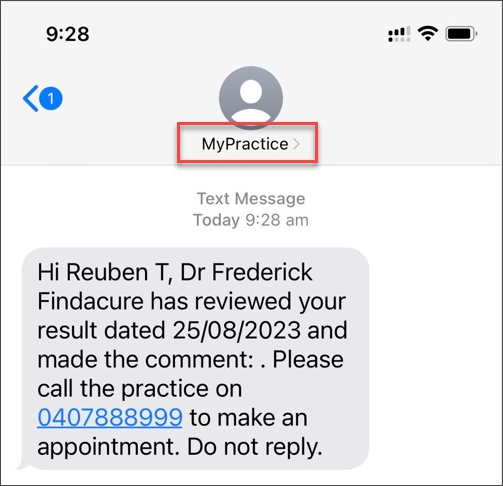
TIP When choosing a Sender ID (Alpha Tag), use a name that clearly relates to your practice to maximise the chance of approval.
NOTE Best Practice Software does not control the registration of Sender ID (Alpha Tags). Your requested Sender ID (Alpha Tag) may be rejected if it is not directly associated with your business's name or brand, or if it is already in use by another entity. Rejected Alpha Tag requests cannot be overridden by Best Practice Software.
Location
To find your Practice Location from the Bp Premier main screen, select Setup > Practice Details > Practice Location
Bp Comms Consent
The Bp Comms Service Agreement outlines the terms and conditions under which the Bp Comms SMS messaging service is provided. This agreement has been recently updated, and this form cannot be submitted without your consent being provided.
Use this link to read the updated Bp SMS Service Agreement.
These instructions are intended for practices that currently use Bp Comms and need to register a Sender ID.
Section 1: Let us know who you are
|
Form Field |
Description |
|---|---|
|
Site ID |
From the Bp Premier main screen, select Help > About. NOTE If your Site ID has fewer than five (5) digits, prefix the number with zeros (0), for example, BPS-111 becomes BPS-00111. |
|
First Name |
Enter the given name or first name of the person completing the form. |
|
Last Name |
Enter the last name or the surname of the person completing the form. |
|
|
Enter the email address at which you would like to receive progress updates. Retype the email address in the second text field and ensure both entries match exactly. |
|
Website or Social Media |
Enter a URL that links to your practice's website or an active social media page for the practice. This field is mandatory and must be completed before the form can be submitted. The link should be a direct URL, for example, https://www.yourpractice.com.au |
Section 2: Australian Business Registry Details
This section requires details found in your practice’s official Australian Business Registry (ABR) record. This information is used to validate your identity as a registered Australian business and to complete your Sender ID registration for the SMS messaging service. It is essential that the information you provide in this section matches the ABR record exactly.
The ABR contact person you nominate in this section must appear on your practice's official ABR record. Before completing this section, review your current listing at the Australian Business Registry to confirm that all details are correct. Errors in this section can cause validation to fail and will delay your Sender ID registration.
|
Form Field |
Description |
|---|---|
|
ABR Contact First Name |
Enter the first name of the contact person who is listed on your practice's ABR record. |
|
ABR Contact Last Name |
Enter the last name of the ABR contact person. |
|
ABR Contact Email |
Enter the email address associated with the ABR contact person. Retype the email address in the second text field to ensure accuracy. Note: This email does not need to match the email provided in Section 1; it must match what is recorded on the ABR. |
|
Business Legal Name |
Enter the legal name of your business as it appears on your ABR record. Be aware that the Business Legal Name is typically different from the Trading Name. The legal name is the registered entity name, while the trading name is the name under which the business operates publicly. |
|
Trading Name |
Enter the trading name of your practice. This is the name your patients and the public know you by, which may differ from the registered legal entity name. |
|
ABN |
Enter your practice's Australian Business Number (ABN). The ABN must be eleven (11) digits. Ensure you enter the ABN exactly as it appears on your ABR record, without spaces or formatting characters. |
|
Street Address |
Enter the street address of your practice as it appears on your ABR record. This should be the practice location's physical address. |
|
City/Suburb |
Enter the city or suburb of the practice location. |
|
State |
Select or enter the Australian state or territory in which the practice is located. |
|
Postcode |
Enter the practice address's four-digit postcode. |
Section 3: Sender ID
A Sender ID (Alpha Tag) is a custom sender name that appears on the recipient's phone instead of a mobile number when you send an SMS (for example, your practice name).
IMPORTANT Sender IDs (Alpha Tags) are case-insensitive, meaning “BESTHEALTH” is treated the same as “besthealth”.
When selecting a Sender ID (Alpha Tag) for your practice, it must adhere to the following restrictions:
- Can only consist of letters
- Can be a minimum of two (2) and a maximum of eleven (11) characters
- Cannot contain numbers
- Must not contain a space or underscore (_) at the beginning or end of the Sender ID (Alpha Tag)
- Must not contain any prohibited terms, such as “Unverified”, or offensive, deceptive, or misleading words.
TIP When choosing a Sender ID (Alpha Tag), use a name that clearly relates to your practice to maximise the chance of approval.
NOTE Best Practice Software does not control the registration of Sender ID (Alpha Tags). Your requested Sender ID (Alpha Tag) may be rejected if it is not directly associated with your business's name or brand, or if it is already in use by another entity. Rejected Alpha Tag requests cannot be overridden by Best Practice Software.
Location
To find your Practice Location from the Bp Premier main screen, select Setup > Practice Details > Practice Location
Bp Comms Consent
The Bp Comms Service Agreement outlines the terms and conditions under which the Bp Comms SMS messaging service is provided. This agreement has been recently updated, and this form cannot be submitted without your consent being provided.
Use this link to read the updated Bp SMS Service Agreement.
These instructions are intended for practices that currently use Bp Comms and have not yet registered with the ACMA.
Section 1: Let us know who you are
|
Form Field |
Description |
|---|---|
|
Site ID |
From the Bp Premier main screen, select Help > About. |
|
First Name |
Enter the given name or first name of the person completing the form. |
|
Last Name |
Enter the last name or the surname of the person completing the form. |
|
|
Enter the email address at which you would like to receive progress updates. Retype the email address in the second text field and ensure both entries match exactly. |
|
Website or Social Media |
Enter a URL that links to your practice's website or an active social media page for the practice. This field is mandatory and must be completed before the form can be submitted. The link should be a direct URL, for example, https://www.yourpractice.com.au |
Section 2: Australian Business Registry Details
This section requires details found in your practice’s official Australian Business Registry (ABR) record. This information is used to validate your identity as a registered Australian business and to complete your Sender ID registration for the SMS messaging service. It is essential that the information you provide in this section matches the ABR record exactly.
IMPORTANT The ABR contact person you nominate in this section must appear on your practice's official ABR record. Before completing this section, review your current listing at the Australian Business Registry to confirm that all details are correct. Errors in this section can cause validation to fail and will delay your Sender ID registration.
|
Form Field |
Description |
|---|---|
|
ABR Contact First Name |
Enter the first name of the contact person who is listed on your practice's ABR record. |
|
ABR Contact Last Name |
Enter the last name of the ABR contact person. |
|
ABR Contact Email |
Enter the email address associated with the ABR contact person. Retype the email address in the second text field to ensure accuracy. Note: This email does not need to match the email provided in Section 1; it must match what is recorded on the ABR. |
|
Business Legal Name |
Enter the legal name of your business as it appears on your ABR record. Be aware that the Business Legal Name is typically different from the Trading Name. The legal name is the registered entity name, while the trading name is the name under which the business operates publicly. |
|
Trading Name |
Enter the trading name of your practice. This is the name your patients and the public know you by, which may differ from the registered legal entity name. |
|
ABN |
Enter your practice's Australian Business Number (ABN). The ABN must be eleven (11) digits. Ensure you enter the ABN exactly as it appears on your ABR record, without spaces or formatting characters. |
|
Street Address |
Enter the street address of your practice as it appears on your ABR record. This should be the practice location's physical address. |
|
City/Suburb |
Enter the city or suburb of the practice location. |
|
State |
Select or enter the Australian state or territory in which the practice is located. |
|
Postcode |
Enter the practice address's four-digit postcode. |
Bp Comms Consent
The Bp Comms Service Agreement outlines the terms and conditions under which the Bp Comms SMS messaging service is provided. This agreement has been recently updated, and this form cannot be submitted without your consent being provided.
Use this link to read the updated Bp SMS Service Agreement.
Frequently Asked Questions
The following questions address the most common issues encountered by practices when completing the Sender ID Registration Form. If your question is not answered below, contact the Account Management team on 1300 40 1111.
Why has my ABR Validation Failed?
Validation failures in Section 2 of the form are often caused by a mismatch between the information entered on the form and the details held on the official ABR record. Before contacting the Account Management team, verify each field against your practice's listing at the Australian Business Registry. Pay particular attention to the ABR contact person's name and email, as these are frequent sources of error.
If the ABR contact person is no longer associated with your practice, you must update your ABR record before reattempting the registration form.
Why did Best Practice reject my Sender ID request?
Sender ID requests are not controlled by Best Practice Software. They are processed by an external telecommunications registration authority. Requests may be rejected if the requested tag is not clearly associated with your business name or brand, or if the tag is already registered to another entity.
To improve the likelihood of approval, choose a Sender ID that is a recognisable abbreviation or form of your practice's trading name. If your Sender ID request is rejected, you will need to submit an alternative request.
My business operates with Multiple ABNs, what should I do?
The registration form does not support practices with multiple ABNs. If your practice operates under more than one ABN, you must contact the Account Management Team on 1300 40 1111 before attempting to complete the form. The Account Management Team will provide guidance on how to proceed with your enrolment in these circumstances.
Last updated: 29 April 2026.



 AU
AU 