
This article describes how to submit PBS Authority prescriptions to Services Australia using Lyrebird in Bp Premier.
PBS Authority prescriptions are created and saved in Bp Premier. Lyrebird synchronises the prescription, patient and prescriber information from Bp Premier, and displays the applicable PBS indication and restriction questions. Lyrebird submits the request to Services Australia and displays the outcome, including the approval number if the request is approved. The approval number does not automatically appear in Bp Premier; it must be copied from Lyrebird and pasted into the prescription in Bp Premier.
Visit the Lyrebird Health website to learn more about Approving PBS Authority Scripts in Lyrebird.
In this article:
Before you begin
Before submitting a PBS Authority request using Lyrebird, confirm the following requirements:
|
Requirement |
Description |
|---|---|
|
Bp Premier and Lyrebird Health |
Lyrebird Health must be approved as a third-party integration in Setup > Configuration > Database > Setup third-party integrations, and the user’s Lyrebird Health account must be connected to Bp Premier. See Connect Lyrebird Scribe to Bp Premier for more information. |
|
Authority Scripts feature |
The Authority Scripts feature must be available for the user’s Lyrebird Health account. If the tab is not displayed, contact Lyrebird Health Support. |
|
PRODA account |
The prescriber must have an existing PRODA account with Services Australia. Lyrebird uses the prescriber’s existing PRODA credentials and does not create or manage a PRODA account. PRODA authentication is generally required once per day; the connection remains available for subsequent authority requests until the session expires. |
|
Authenticator app |
Access to the authenticator app linked to the PRODA account is required, as a one-time multi-factor authentication code is needed at sign-in. |
|
Prescription and authority details |
Create the PBS Authority prescription and save the authority details in Bp Premier before synchronising the prescription to Lyrebird. The Authority Form No generated in Bp Premier must match the number in Lyrebird before the request is submitted. |
Connect to PRODA in Lyrebird
In Lyrebird, connect to PRODA from the Authority Scripts screen before submitting the first authority request for the day.
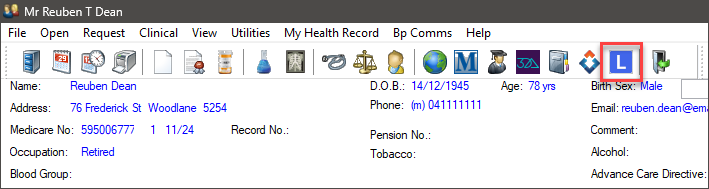
- From the patient record, click the
 Lyrebird Health icon on the toolbar. The Lyrebird Health browser will appear.
 - From the menu in the Lyrebird Health browser, select Authority Scripts.
- Click Login to PRODA (OAuth)
- Enter the prescriber’s PRODA username and password.
- Enter the one-time multi-factor authentication code from the authenticator app.
- When authentication is successful, PRODA connected will be displayed in the panel.
Create and save the authority prescription in Bp Premier
In Bp Premier, create the prescription before synchronising it to Lyrebird Health. Opening the Authority Approval screen generates the Authority Form No, and saving the prescription locks in that number. The same number is then transferred to Lyrebird Health.
- In Bp Premier, select Current Rx from the tree on the left of the patient record and click Add to open the New Rx screen.
- Search for and select the medication requiring PBS Authority approval, then click Next.
- Complete the dosage screen and click Next.
- Complete the further prescription options screen and click Next. As the medication requires PBS Authority approval, the Authority Approval screen will appear.
- Select the applicable PBS listed Indications for Authority.
- Bp Premier displays the Authority Form No for the prescription, and the Approval No. field remains blank until an approval number is returned by Services Australia. Click Save.
- Select the Reason for Prescription and then click Finish to save the prescription.
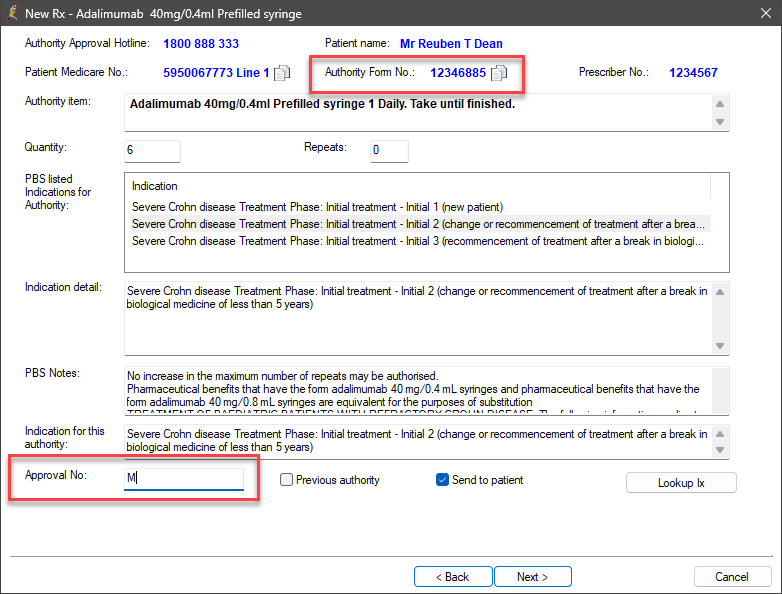
After the prescription has been saved, the Authority Form No will remain unchanged if the record is reopened for editing.
IMPORTANT Do not leave the Authority Approval screen open without completing the New Rx wizard through to Finish. If the prescription is not saved, Bp Premier may generate a different Authority Form No when it is reopened.
Synchronise the prescription and submit the request
In Lyrebird, synchronise the prescription saved in Bp Premier and complete the PBS restriction questions.
- Return to the Authority Scripts screen in the Lyrebird Health browser.
- Click Synchronise with Bp. The patient’s prescribed medications will be displayed. The list includes all prescribed medications and is not limited to medications requiring PBS Authority approval. Patient and prescriber details are populated from Bp Premier.
- Select the medication requiring authority approval.
- Compare the Authority Form No displayed in Lyrebird with the number in Bp Premier.
- If the numbers match, continue to Step 5.
- If the numbers do not match, do not submit the request. See Resolve an 'Authority Form No' mismatch for more information.
- Select the applicable PBS indication. Lyrebird displays the full indication text and restriction questions for the selected medication.
- Answer each restriction question and review the request details.
- Click Submit.
Lyrebird Health displays the response returned by Services Australia. If the request is approved, the approval number will be displayed in the panel.
Enter the approval number in Bp Premier
Copy the approval number from Lyrebird and enter it in Bp Premier.
- In Lyrebird Health, click Copy approval number.
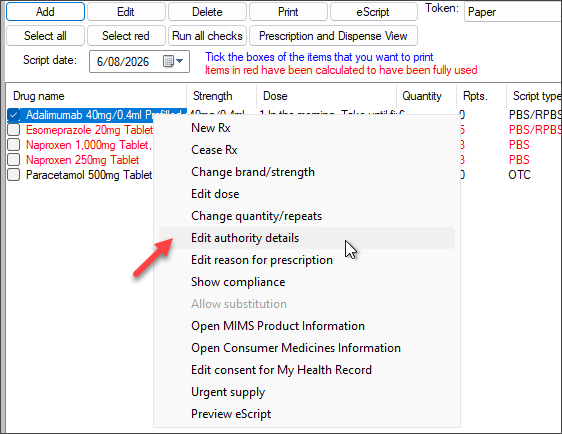
- Return to the prescription in Bp Premier. Right-click the medication in Current Rx and select Edit authority details.
- Paste the approval number into the Approval No. field.
- Print the prescription, or send it as an eScript. See Add, Edit or Cease a Prescription (Rx) for more information.
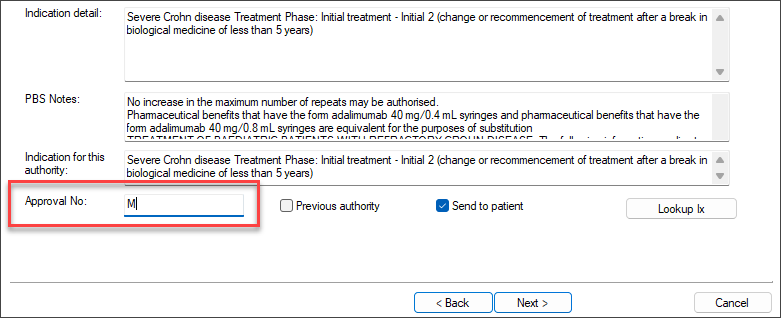
IMPORTANT The approval number is not automatically written back to Bp Premier. Enter the number into the Approval No. field before printing or sending the prescription.
Submit another authority prescription during the consultation
Additional PBS Authority prescriptions can be submitted during the same consultation while the PRODA session remains active. Create each prescription in Bp Premier, then synchronise it to Lyrebird Health to submit the request.
- Create the prescription in Bp Premier.
- Complete the New Rx wizard, including the Authority Approval screen, and click Finish to save the prescription and record the Authority Form No.
- Return to the Authority Scripts screen in Lyrebird and click Synchronise with Bp.
- Select the new medication and complete the authority request.
Troubleshooting
This section covers common issues encountered when submitting PBS Authority requests through Lyrebird Scribe.
|
Issue |
Description |
|---|---|
|
If the authority request is declined in Lyrebird Health |
If Services Australia declines the request, the returned reason will be displayed in the Lyrebird Health browser.
If the request cannot be approved through Lyrebird Health, follow the practice’s usual PBS Authority prescribing process. |
|
Do not submit the authority request if the Authority Form No in Lyrebird Health is different from the number displayed in Bp Premier. An approval issued against a different form number will not be valid for the prescription that is printed or sent electronically. Why the 'Authority Form No' may not matchBp Premier generates an Authority Form No when the Authority Approval screen is opened. If the prescription has not been saved, the number may change when the record is reopened. The number synchronised to Lyrebird Health may therefore differ from the number displayed in Bp Premier. A mismatch is more likely when the patient already has an existing authority medication, and is less common for a new authority prescription. Correct the Authority Form No
|
|
|
The Authority Scripts tab is not displayed in Lyrebird Health |
Confirm that Lyrebird Health is enabled and connected in Bp Premier, and that Authority Scripts is available for the user’s Lyrebird account. Contact Lyrebird Health Support if access is required. |
|
PRODA displays Session expired in Lyrebird Health |
Click Login to PRODA (OAuth), enter the prescriber’s PRODA credentials and complete multi-factor authentication again. |
|
The medication is not displayed in Lyrebird |
Save the prescription in Bp Premier, then click Synchronise with Bp. The list displays the patient’s prescribed medications, including medications that do not require authority approval. |
|
The approval number is not shown in Bp Premier |
The approval number is not written back automatically. Copy it from Lyrebird Health and paste it into the Approval No. field in Bp Premier. |
Information correct at time of publishing (06 August 2026).



 AU
AU 