
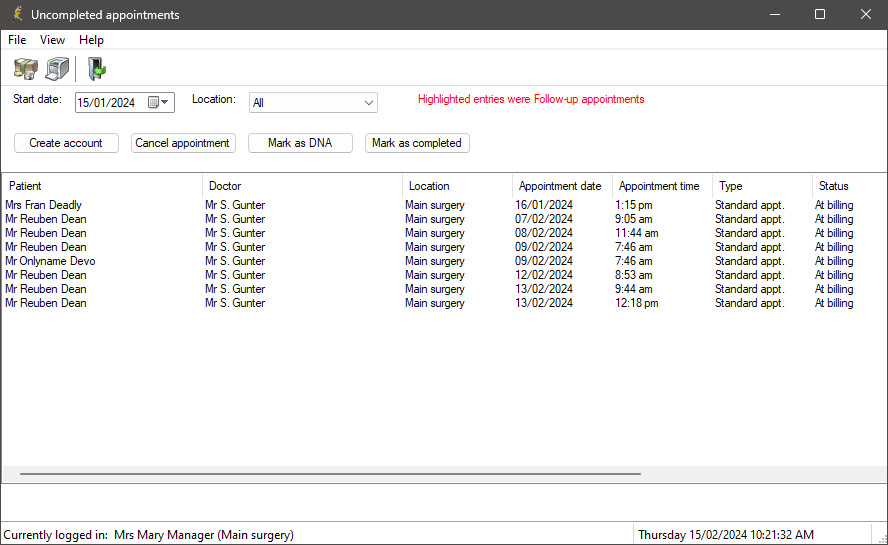
The Uncompleted appointments screen shows all past appointments that have not been progressed to a Completed or Cancelled status. From this screen, you can create an account for finalisation, cancel the appointment, or mark as Did Not Attend.
- From the main screen, select Management > Uncompleted appointments. Or, from the appointment book, select View > Uncompleted appointments. The Uncompleted appointments screen will appear.
- Select a Start date or Location to filter the list by date and practice location.
- Select an appointment from the list and click one of the buttons to resolve:
- Create account — Opens the Account details screen to process the account. See Create a simple account for more information.
- Cancel appointment — Marks appointment as Cancelled and removes appointment from list.
- Mark as DNA — Marks appointment as Did Not Attend and removes appointment from list.
- Mark as completed — Marks appointment as Completed and removes appointment from list.
- If you need more information, right-click an appointment and select to view patient details, the patient's billing history, or open the appointment book at the appointment slot. Double-click an appointment to open the account details for the appointment.
- Select File > Close when you have resolved all uncompleted appointments.
Last updated: 15 February 2024.



 AU
AU 