
Some Bp Premier users have reported connection issues between the server and client, and between third-party integrations using the HALO link, after running the Oxford version Service Pack 1 (SP1) Program Update.
"Bp Premier couldn't connect to the database. Please try again. If the problem continues, contact your practice administrator or IT for assistance."
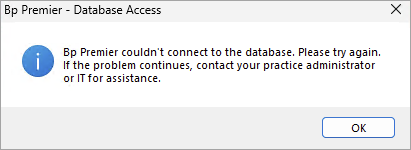
Follow the instructions below to Run the Update Database utility and Restart Halo Link Service in sequence to resolve the issue.
1. Run the Update Database utility
Before you begin
Run the Update Database Utility:
- On the Bp Premier server only
- After operating hours
- With no active Premier client connections.
If the Update Database utility does not finish successfully, apply all Microsoft Windows updates first and retry.
- Back up the Bp Premier database so an up-to-date restore is available. See Back Up and Restore Bp Premier for more information.
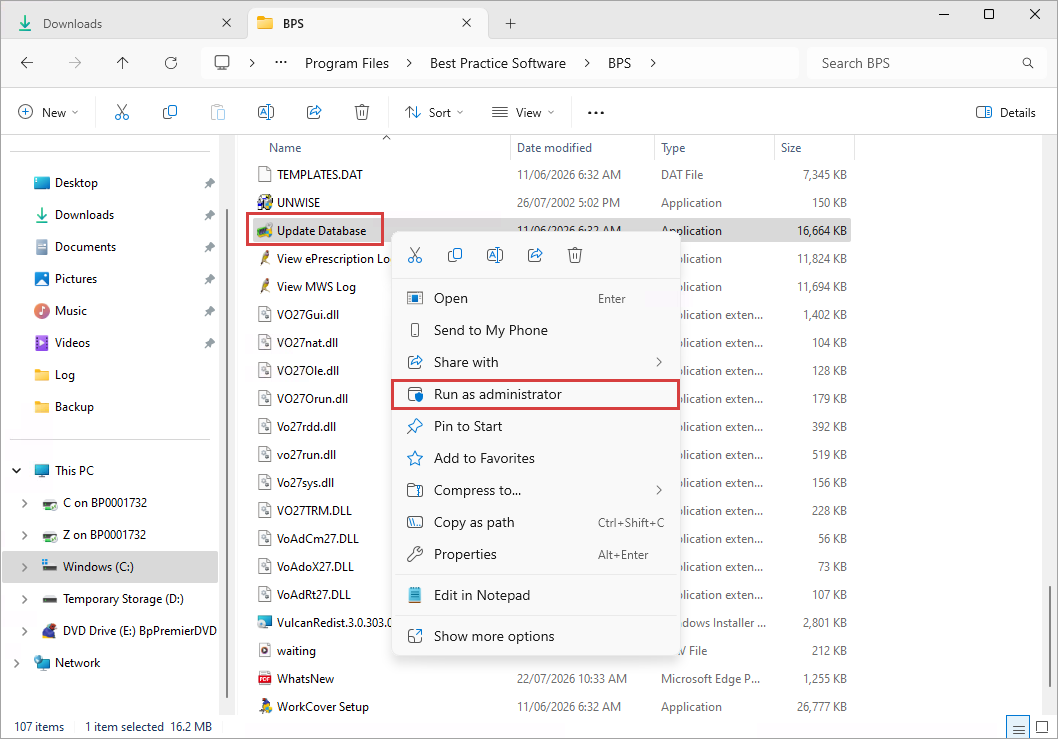
- Navigate to C:\Program Files\Best Practice Software\BPS and locate the Update Database utility.
- Right-click on the utility and select Run as administrator.
- Once the utility has completed, log in to Bp Premier.
2. Restart the HALO Link Service
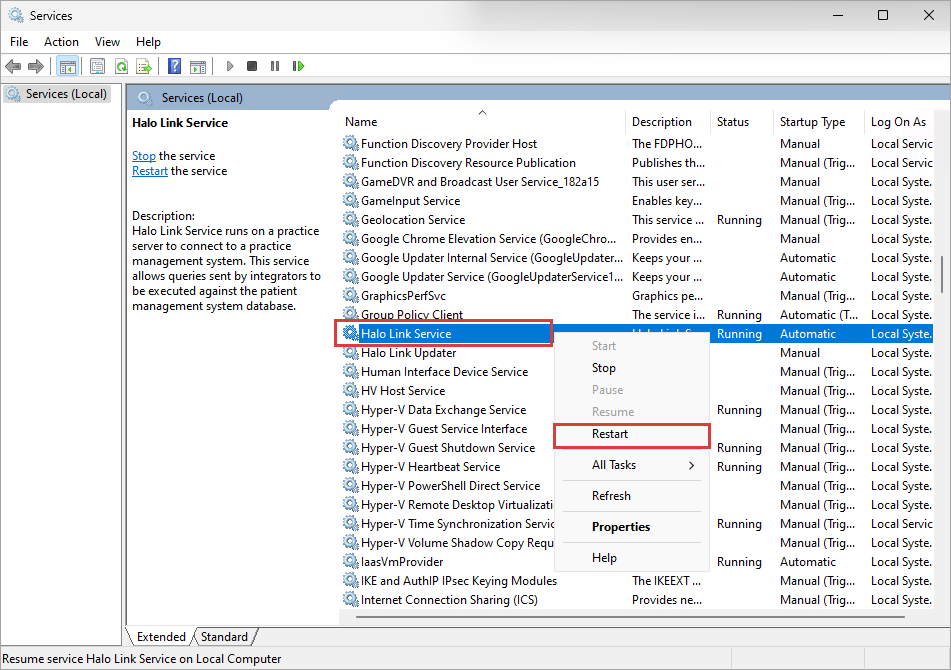
- Search for ‘services’ in the Window desktop search bar. Open the Windows Services app.
- Locate the Halo Link Service in the list.
- Right-click on the Halo Link Service and select Restart.
- Test that the connection between Bp Premier and your partner integrations is working.
IMPORTANT If the issues persist, please contact Bp Support on 1300 40 1111.
Additional troubleshooting
Troubleshooting medical devices
Due to the security enhancements made to Oxford SP1, you may experience errors with your medical devices (such as ECG, Spirometry, or Blood Pressure devices) connecting and importing data to Bp Premier after updating.
If you experience any issues:
- Contact your device manufacturer for support in the first instance.
- Follow the instructions on the Bp Premier Knowledge Base to Use a medical device without an interface.
Troubleshooting workstation unable to talk to server
The following advice applies to sites that use CNAME entries to set server locations.
A CNAME (Canonical Name) record is a type of DNS record that maps one domain name (an alias) to another domain name (the canonical/real name), instead of directly to an IP address. For example, alias.mypractice.com.
If a workstation is unable to connect to the server, sites may need to update their CNAME record to either:
- The IP address of the server
- The server machine name.
Last updated: 20 August 2026.



 AU
AU 