
This article contains a checklist of information to be updated when moving a practice from one physical location to another.
IMPORTANT This is not an exhaustive list of every step needed to be taken when moving a practice location, but a helpful guide to assist with the move.
A location indicates a practice, or region within a clinic, that has its own address, staff, providers, billing function and similar. Below is a list of helpful articles to keep on hand to refer to when moving location:
- Relocating your practice - RACGP
- Update your practice details for PIP - Services Australia
- Update your organisation's details in the HI Service - Services Australia
In this article:
Notify Medicare
To notify Medicare that your practice is moving, you must update your details through HPOS, managed via your PRODA account. You are required to notify Services Australia of changes to practice arrangements within 7 days of the change.
- Log in to PRODA and access HPOS.
- Select My details > My provider numbers > My provider number details > Edit
- Update the relevant details.
- Select Submit when details are correct.
TIP Confirm with Medicare that the provider number is linked to your Minor ID correctly.
Update MyMedicare
If your practice is registered for MyMedicare, ensure that you update the location details in the organisation register to reflect your practice location change.
- Log in to PRODA and access your Organisation Register.
- Select My details > My provider numbers > My provider number details > Edit
- Update the relevant details.
- Select Submit when details are correct.
Update practice location details in Bp Premier
- Select Setup > Practice from the Bp Premier screen. The Practice details screen will appear.
- Click Add next to the Practice Locations list field. The Location details screen appears.
- Complete the details for this location and click Save.
-
A location AIR provider number is still required for users without an individual provider number to access AIR data via the View AIR button.
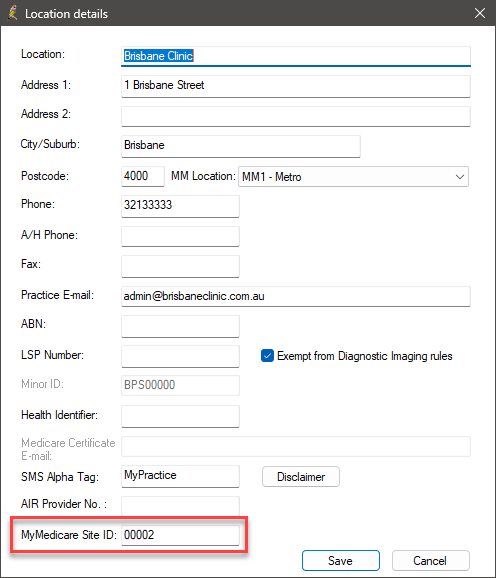
- Enter the MyMedicare Site ID for each practice location.
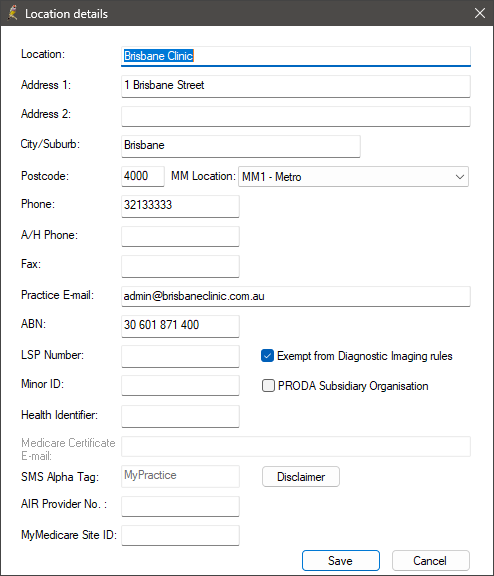
MM Location (Modified Monash Model) is how the Department of Health and Aged Care determine whether a location is metropolitan, rural, remote or very remote. Select the option applicable to the practice location from the MM Location list box. Depending on your location, bulk billing incentives will be applied differently.
Visit the Department of Health website for more information about the Modified Monash Model.
Use the Department of Health's Health Workforce Locator to determine which Modified Monash Location your practice location is in.
LSP Number (also known as the LSPN) is the Location Specific Practice Number used when practices provide diagnostic imaging services or radiation oncology services.
ABN can be recorded for individual practice locations. A location's ABN is available for insertion in documents like invoices, receipts, Medicare forms, and general templates.
A Health Identifier, also known as a HPI-O, can be added for specific locations as well as for the entire practice.
Location AIR provider number
In Saffron SP3 Rev 1 and later, you no longer require a location AIR provider number for users without an individual provider number to send immunisations to the AIR. If the Billing provider is set to a user with an individual provider number, the immunisation will send successfully.
A location AIR provider number is still required for users without an individual provider number to access AIR data via the View AIR button.
In Saffron SP3 you can add your location's AIR Provider Number. An AIR Provider Number is required for organisations who wish to upload immunisation data to the AIR and access AIR data through Bp Premier, but the organisation's staff members do not have Medicare provider numbers.
In Saffron SP3 Rev 1 and later, you no longer require a location AIR provider number for users without an individual provider number to send immunisations to the AIR. If the Billing provider is set to a user with an individual provider number, the immunisation will send successfully.
If you do not yet have an AIR provider number at location level, you must complete and submit the Application to register as a vaccination provider form (IM004). You must send the completed form to your state or territory health department. Once your application has been approved by your state or territory health department, they will forward the application to Services Australia for processing.
Your location AIR provider number will be seven characters, comprised of letters and numbers.
If you require assistance from Services Australia regarding the Location AIR provider number, ensure you mention that you are calling about an 'Ancillary provider for the practice'.
If all members of your organisation who need to upload immunisation data to the AIR and access AIR data already have Medicare Provider Numbers, you can disregard this field.
Record MyMedicare Site ID
The field, MyMedicare Site ID, has been added to the Location Details window in Setup > Practice Details > Add/Edit.
The Organisation Site ID should be entered into the MyMedicare Site ID field for single and multi-location practices, ensuring that the Organisation Site ID matches the correct practice location in Bp Premier. To obtain the Organisation Site ID for your practice location, log on to PRODA > HPOS > Organisation Register. Visit the Services Australia website for detailed instructions on locating your Organisation Site ID.
IMPORTANT Best Practice Software recommends promptly entering the MyMedicare Site ID (Organisation Site ID) into Bp Premier for each practice location. In Orchid SP1 Revision 1, it is not mandatory to record the MyMedicare Site ID; however, this will be required in future iterations of MyMedicare.
The MyMedicare Site ID will be used in conjunction with the patient's Registered Location to ensure that the correct MyMedicare incentive is applied for the invoicing location.
Delete a location
- Select the location on the Practice details screen and click Delete. A prompt will appear if any users have provider numbers linked to that location.
- If the location is deleted, users with linked provider numbers will still be visible, but the provider number linked to that location will no longer be visible.
Restore a deleted location
- Select the Show Deleted check box at the bottom of the screen to view deleted locations.
- Select the deleted location in the Practice locations list field and click Restore.
Confirm global practice details
- Select Setup > Practice details from the Bp Premier screen. The Practice details screen will appear showing a summary of licence and location details.
- Click Change. The Practice details screen will appear with fields for updating.
- Complete the identifiers that are global to all practices:
- Australian Business Number
- Vaccine Service Provider Number
- Health Identifier.
- Best Practice Software Sales will have supplied you with your Site ID Number and Licence Code.
- Update any details and click Save.
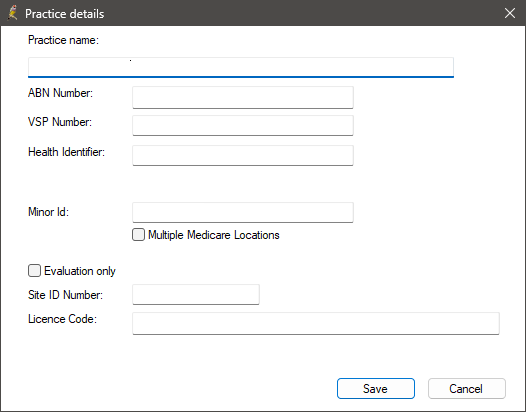
If your practice only uses one minor ID you can enter it here, or you can indicate that your practice has multiple Medicare locations. This can also be done via Setup > Configuration > Online claiming. See Set up Online Claiming for more information.
The ABN number and Health Identifier number are specified here for single-location practices. In a multi-location practice, these values are used where location-specific alternatives have not been supplied.
Update Location Specific Practice Number (LSPN)
If your practice provides diagnostic imaging or radiation oncology services, you will need a new LSPN record as these are location specific.
To renew your registration, follow the steps below:
- Log in to PRODA and access HPOS
- Select My details > My organisations
- Select Renew for the LSPN you want to renew
- Review and make changes to the Organisation summary details
- Select Renew.
Provider numbers
NOTE A unique provider number is required for each place of practice.
Register for a new provider number for the new location by downloading and completing the Application for a Medicare provider number and/or prescriber number for a medical practitioner form. This form can either be printed, completed and mailed or completed electronically with Adobe Acrobat Reader and emailed.
Learn more about how to use forms from Services Australia.
For an all digital application, you'll need to log in to HPOS via PRODA.
Update your practice details for the Practice Incentive Program (PIP)
When moving your practice location, it's important to make Services Australia aware of changes to your practice details, any changing in practitioner details, contact persons, bank accounts, accreditation status, and any changes that affect your eligibility for individual incentives.
Below you will find links to multiple forms provided by Services Australia. These forms can be downloaded or filled out electronically. Not all forms will apply to all situations, so choose the forms which are relevant to your situtation.
- Practice Incentives Individual general practitioner or nurse practitioner details form (IP003)
- Practice Incentives Change of practice details form (IP005)
- Practice Incentives Change of practice ownership form (IP010)
- Practice Incentives Practice closure or withdrawal form (IP007)
- Practice Incentives Additional practice branch form (IP025).
Updating Accreditation
If you move your practice to another address, you'll need to make Services Australia aware. A new accreditation certificate is required to be provided within 6 months of relocating.
Learn more about accreditation advisories for the National General Practice Accreditation Scheme.
Notify your patients
Along with letting patients know in the lead up to the move, it's recommended to perform a database search and then a mail merge after the fact to let all patients know.
Select patients for communications
Begin by searching the database for eligible patients. It's recommended to add search queries for patients who have been seen in the last 12-24 months.
- From the main screen of Bp Premier, select Utilities > Search.
- Select Visits and select dates that match the criteria, and then select Add.
- Run the query for a result of all active patients who have visited during the specified time period.

Send communications
- After you have generated a list of patients from a database search, select File > Mail Merge. The Mail merge screen appears.
- In the Bp Comms tab, select the SMS template you want to use.
- Click Send from the Mail Merge window. Bp Premier will confirm that you want to send the selected messages.
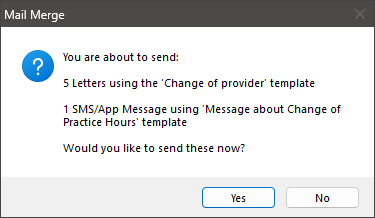
NOTE Patients who have consented and enrolled will be added to the SMS or App total; patients who have not consented will be added to the Letter total.
Update Letterheads
If the letterhead that appears on invoices contains your address, you will need to make amendments to account for the change of address.
To edit your practice letterhead, follow the steps below:
- From the main Best Practice screen, click the
 icon or select Utilities > Word processor from the menu. The word processor will open.
 - Select Templates > Edit letterhead. The Letterheads screen will appear.
- Select 'Practice' from the list and click Edit. The letterhead will be loaded into the word processor.
- Modify the letterhead template, inserting fields as you would for any template.
- Select File > Save.
Learn more about letterheads from the complete article.
Keep BpComms accurate
When sending reminders and updates to your patients with SMS, ensure that the location in the SMS text is not leading patients to an older location.
To update your Bp Comms templates, follow the steps below:
- Select Setup > Configuration from the main Bp Premier screen.
- Select the desired template from the list, and click Edit.
- Make the necessary adjustments to any templates with an incorrect details.
- Select Save.
Learn more about Bp Comms templates from the complete article.
What do I do next?
After you've set up your basic practice and location details, you'll need to set up the main billing and clinical functions:
- Set up billing
- Set up appointment book sessions and holidays
- Add appointment types and cancellation reasons
- Set up the Clinical module
- Add or update a user
Last updated: 27 February 2026.



 AU
AU 