

Bp Premier Support Guidance
Upgrade SQL Server version
The instructions below show how to upgrade your version of SQL Server database using the Best Practice Software SQL Upgrade utility. The utility can upgrade both full and express editions of SQL Server.
The screens on your server may appear slightly different, depending on your version of Windows, but the upgrade process is the same.
For more information on upgrading from an older version of SQL Server database, refer to the Microsoft knowledge base articles:
- https://msdn.microsoft.com/en-us/library/ms143393(v=sql.110).aspx (upgrading to SQL Server 2012)
- https://msdn.microsoft.com/en-us/library/ms143393(v=sql.120).aspx (upgrading to SQL Server 2014)
These articles explicitly map the upgrade paths for SQL Server versions, and provide more technical guidance on upgrading.
To see which version of SQL Server you have installed, click Help > About > System Info and view the entry for SQL Server version.
Before you begin
You will need the SQL Server installation media for the version of SQL Server you are upgrading to. This might be in the form of a DVD, or an executable installer that you have downloaded and unpacked from a Microsoft SQL Server internet resource.
Back up your existing database immediately prior to the upgrade.
- Download the Bp Premier SQL Upgrade utility here to a known location.
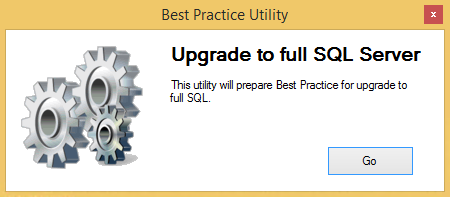
- Run the utility, which will give you a simple Go option.
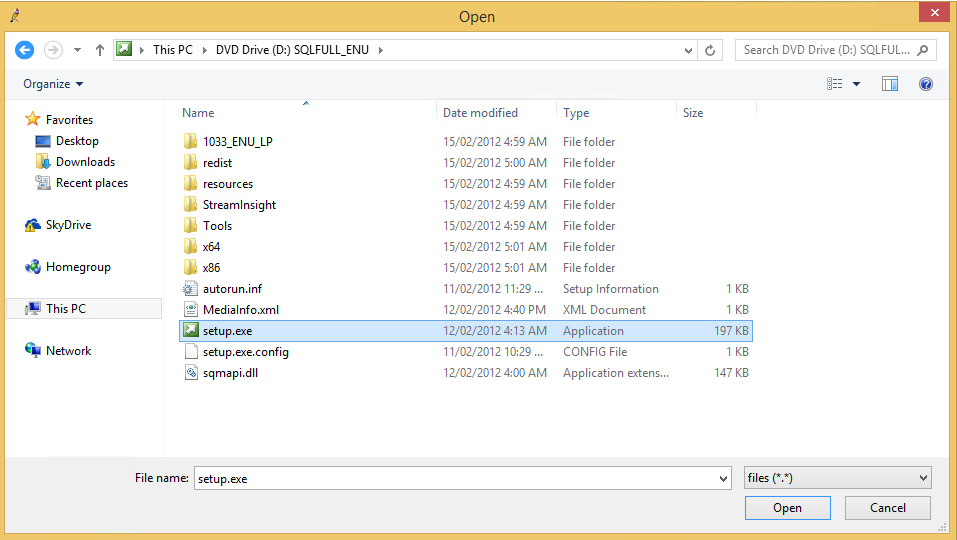
- Click Go. You will be asked to locate the install media. The install media is the setup.exe file on the SQL Server DVD or a SQL Server upgrade executable file that you have downloaded.
- Select setup.exe and click Open. The SQL Server setup process will launch.
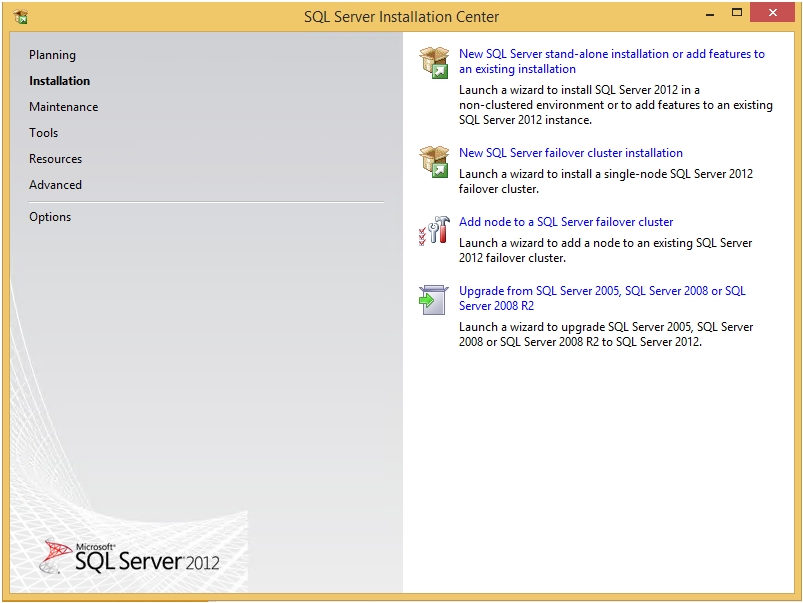
- Select Installation on the left, and select Upgrade from SQL Server 2005, SQL Server 2008 or SQL Server 2008 R2.
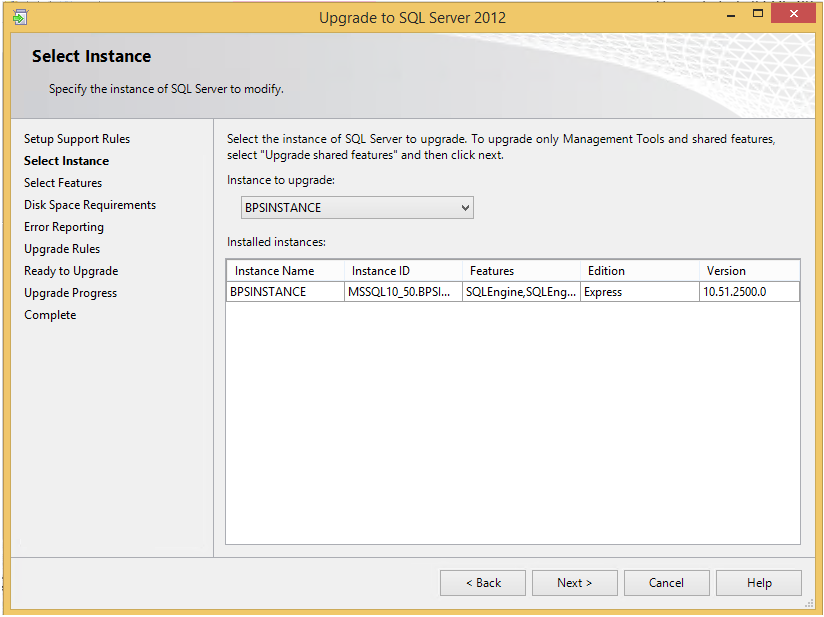
- Step through the process until you are given the option to select the Bp Premier instance to upgrade.
- Select the SQL Server instance you want to upgrade and click Next.
- Proceed through the rest of the install and close the Complete screen when the installer has finished.
- Log in to Bp Premier, select Help > About > System Info, and view the entry for SQL Server version to ensure that the upgrade has been successful. The entry should match the version you have upgraded to.
SQL Server upgrade is complete.
   |
|
|
|
|
|
This material is classified as commercial-in-confidence. Unauthorised distribution of this information may constitute a breach of our Code of Conduct, and may infringe our intellectual property rights. This information is collected and managed in accordance with our Privacy Policy, available on our website. © Copyright 2025 |
|

 AU
AU 