
This article describes how to Export a single Patient record as a password protected PDF from the Address Book or the patient's Demographics.
The term Patient is used throughout this article. In Bp Omni, the terms Patient and Client are used interchangeably.
NOTE In this Beta release, the Include Confidential records checkbox is shown on the Export Patient screen and will be enabled in a future release of Bp Omni.
In this article:
Before you begin
User permissions
Only users with the Security permission for Practice Information set to Administrator can export patient records.
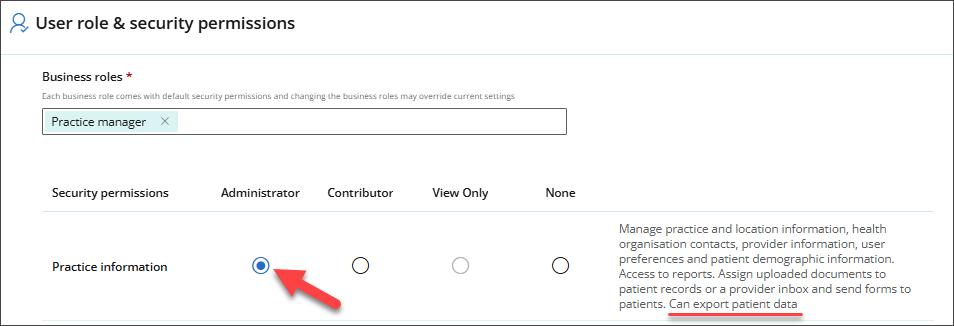
See Configure Business Roles and Security Permissions for more information.
Export a single patient record
- A single patient record can be exported from the Address Book or while viewing the Patient Demographics.
- Open Address Book and search for the patient. Select the meatball menu ⋯ beside the patient’s name and click Export patient record.
- When viewing the patient Demographics, click the clinical record icon, then click Export patient record.
- All Dates are selected by default. To limit the export, use the date picker to set a Start date and End date.
- In Demographic data, click Select all to export all demographic data or tick the items to export: Relationships, Health providers, Contact methods or Employers.
- In Clinical information, click Select all to export all clinical information or tick the items to export: Past consults, Medical history, Investigations, Clinical tools, Management and plan, Reactions, Correspondence, Clinical images, History and examinations, and Family and social history.
- Click Export. The Patient export password modal will appear.
- The Patient export password modal displays the password for the exported PDF. Click Copy to copy the Password before clicking Close.
- The export is created in the background. When complete, an email is sent to the user’s Registered email address.
- Open the Email and click the Patient Record link to download the PDF.
- Open the file in the Adobe Acrobat and enter the Password and click OK.
- The PDF will open, and the exported demographic and clinical information will be displayed.
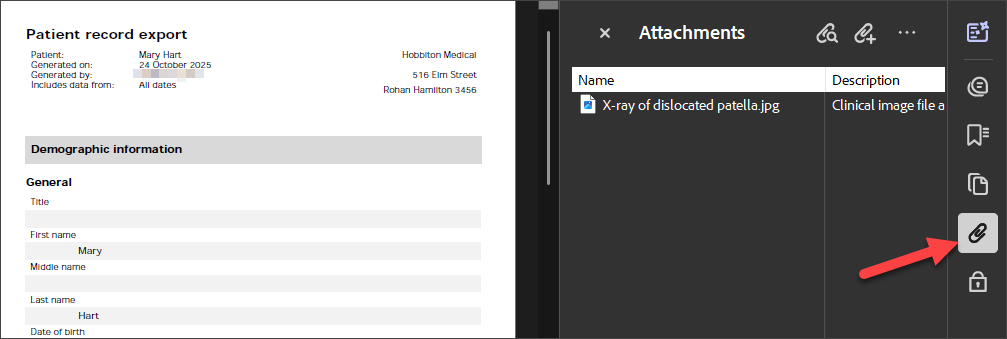
- If Correspondence, Investigations or Clinical images are included in the export, you can view them in the Adobe Acrobat clicking the paperclip icon.
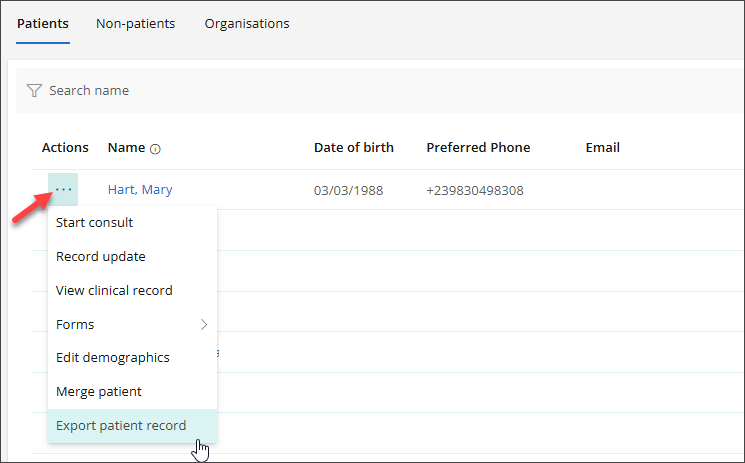
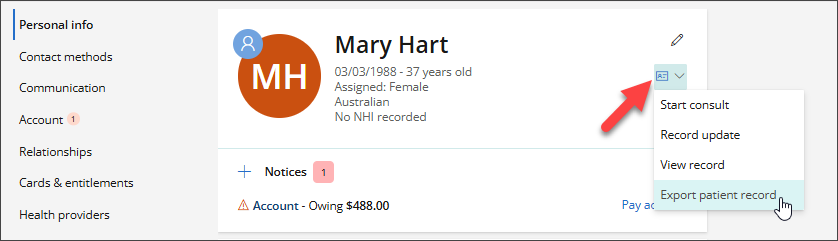
The Export patient modal will appear.
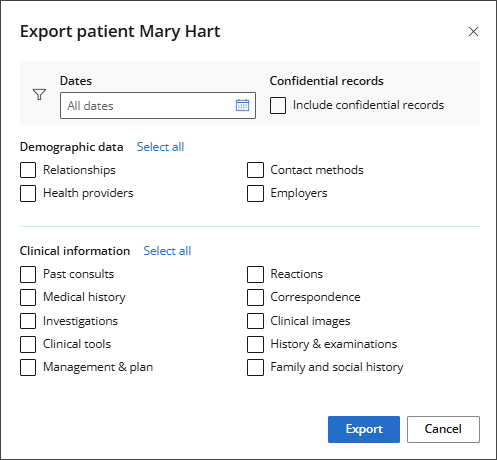
The date range is only applicable to consultations and related clinical information. Demographic data, reactions, medical history, family and social history will all be included if selected and are not affected by the date selection.
IMPORTANT In this Beta release, the Include Confidential records checkbox is shown on the Export Patient screen and will be enabled in a future release of Bp Omni.
The patient’s demographic details, including name, address, and date of birth, are always included in the export.
If a patient is marked as deceased, this status will be displayed in the header.
Correspondence and Clinical images are attached to the PDF and must be opened in the Adobe Acrobat to view them.
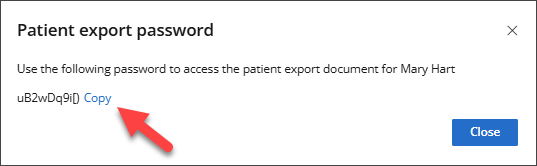
IMPORTANT The Password is not stored in Bp Omni and must be copied, stored securely, and shared with the intended recipient in line with your organisation’s policies and information sharing procedures.
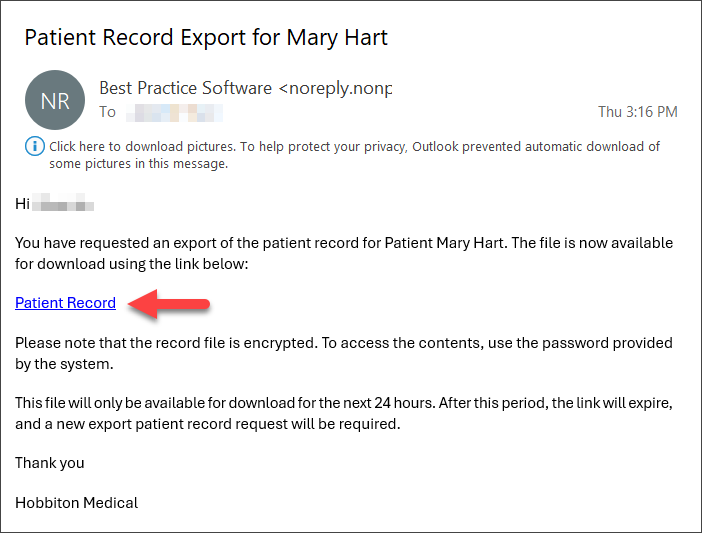
NOTE This file will only be available for download for the next 24 hours. After this time, the link will expire, and you will need to export a new patient record.
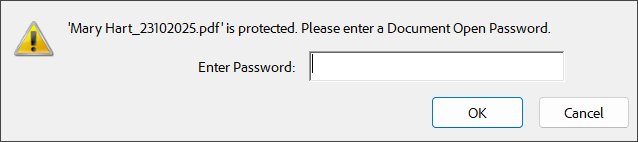
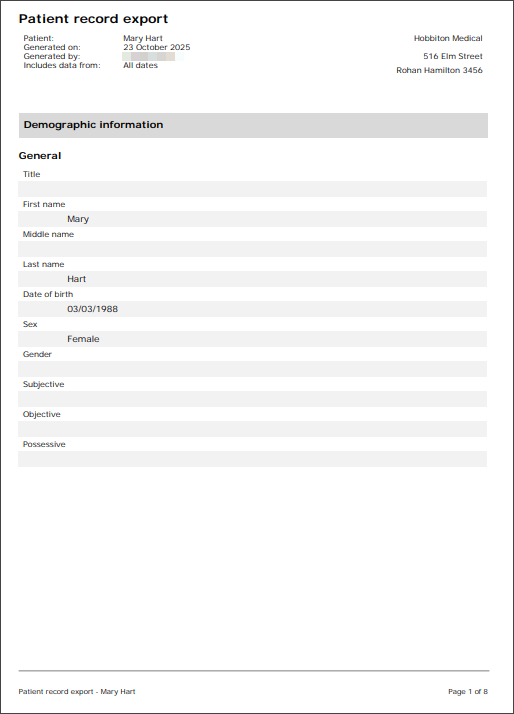
TIP Images from the History & Examinations section appear in that area of the patient export rather than in the Consultation Notes section.
What is excluded from the export?
Some patient information is not included in the export and may need to be exported manually.
Inbox documents
Inbox documents that have not been stored in the clinical record are excluded from the export.
ACC Claims
ACC Claims are not included and must be exported manually from the Clinical Record > Conditions.
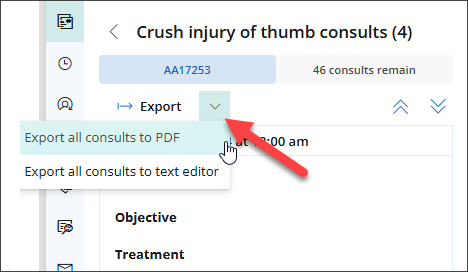
See Export Clinical Consultation Notes for more information.
View the audit log
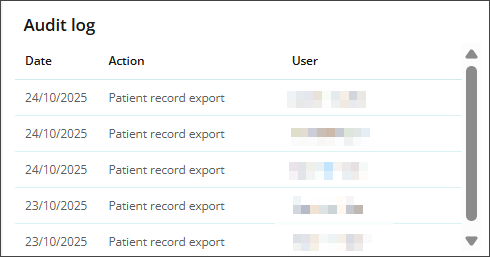
Each time a patient record is exported, an entry is recorded in the patient’s Audit log.
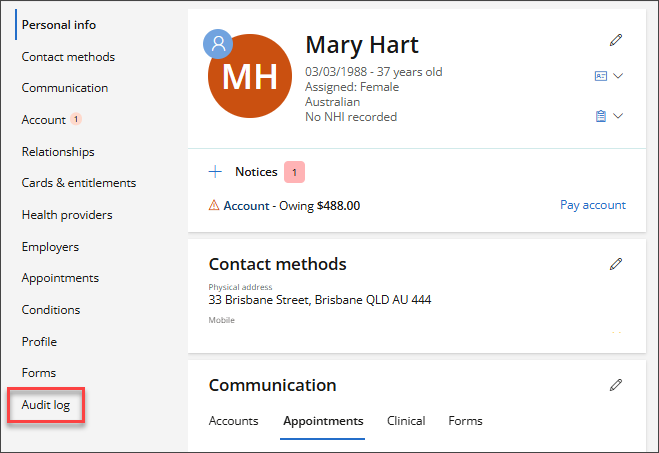
- The patient's Audit log can be viewed on the Patient Demographics screen.
- From the menu on the left, click Audit log.
- The audit log shows the Date, Action, and name of the User who exported the patient record.
Last updated: 28 October 2025.



 AU
AU 