
The guidance-based requesting (GBR) workflow generates pathology requests based on clinical context and patient demographic data, rather than relying on broad sets of standard tests and predefined provider 'Favourites'. GBR generates pathology requests that are tailored to individual patients and less costly, by reducing the number of tests ordered that provide little additional value for a clinical context.
GBR also reports the likelihood of out-of-pocket expenses to the patient, and includes printed Patient Information Sheets that provide information to the patient about any test requirements, such as fasting times.
For more information on the benefits of Guidance-based Requests, review What is Guidance-based Requesting?.
Before you begin
To enable Guidance Based Requesting in Bp Premier, you must:
- Have Bp Premier version Spectra Service Pack 2 or later installed on the server and all workstations.
- Set up a messaging provider and install messaging software on the Bp Premier server or each workstation that will be generating eOrders.
- Set up and configure eOrdering for Pathology.
IMPORTANT Guidance Based Requesting is only available for Pathology Requests.
Enable Guidance Based Requesting
Guidance Based Requesting is available in Bp Premier version Spectra SP2 or later.
- Right-click on the Bp Script Runner Utility download link and select Save Link As or Save Target As. Save the file to a known location, such as the Windows desktop.
- Right-click on the Update_EnableGBR.bpscript download link and select Save Link As or Save Target As. Save the file to a known location, such as the Windows desktop.
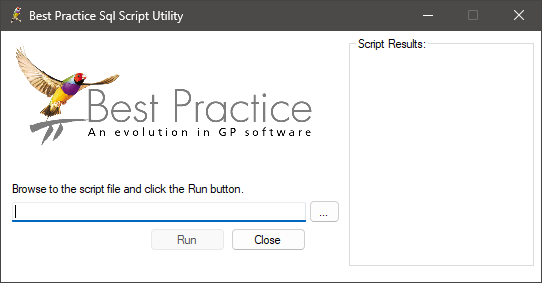
- Browse to the files you downloaded and double-click the BPScriptRunner.exe file to get the prompt below:
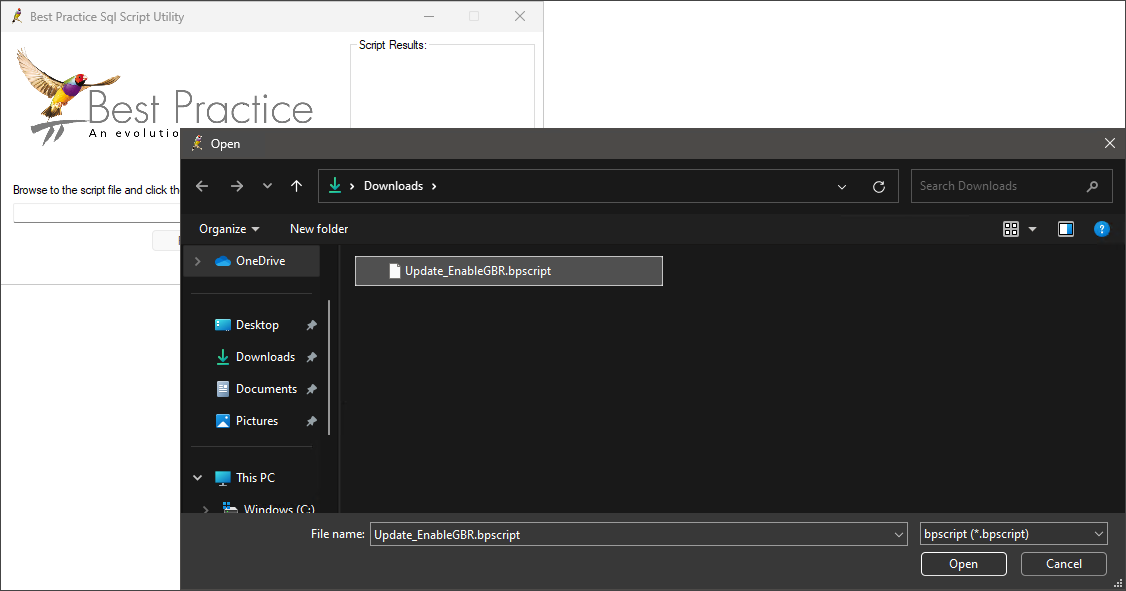
- Click the ... button to open a file explorer. Browse to the Update_EnableGBR.bpscript file saved in step 2.
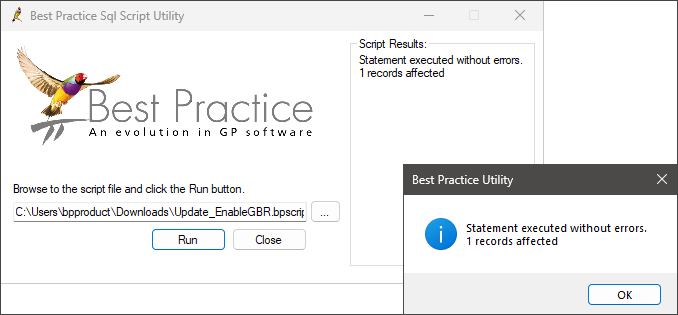
- After the script file has been loaded, click Run.
- The Script Results pane will update to show how many records have been affected by the script.
Enable clinical context ordering
- Log in as a user with permission to update user preferences.
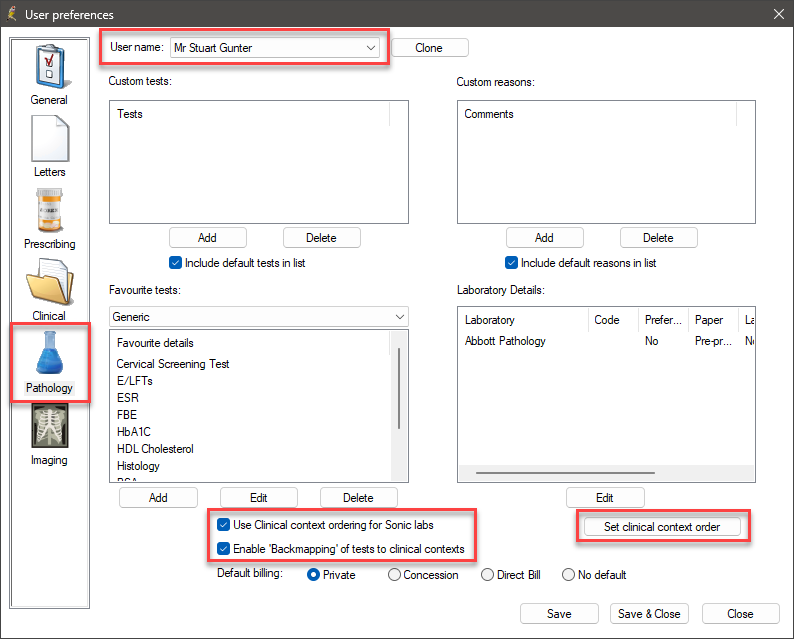
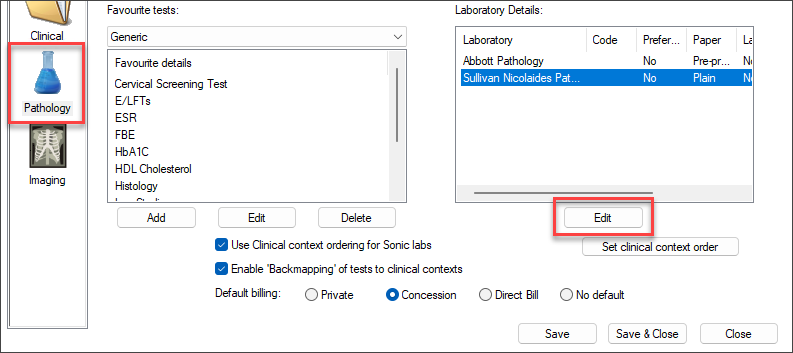
- From the Bp Premier main screen, select Setup > Preferences. The User Preferences screen will appear.
- Select the Pathology tab.
- If you are enabling GBR for a provider other than yourself, select the provider from the User name drop down at the top of the screen.
- Tick Use Clinical context ordering for Sonic labs.
- Tick Enable 'Backmapping' of tests to clinical contexts.
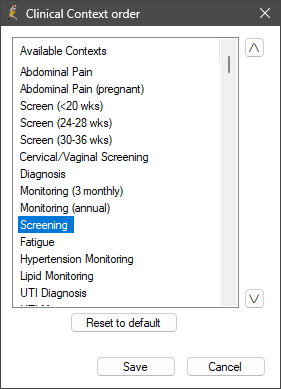
- Click Set clinical context order in the same screen. The Clinical Context order window will appear.
- Click to select a context from the list. use the up and down arrows on the right hand side to move the selected context up or down in the list.
- Click Save.
- Click Save & Close in the User Preferences screen.
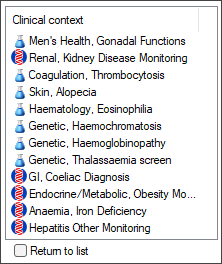
If backmapping is enabled, and a provider manually adds tests to the Tests requested list from search or favourites, the Clinical context list will be updated based on the selected tests.
For example, if the provider adds a test for 'Iron studies' from Favourites:
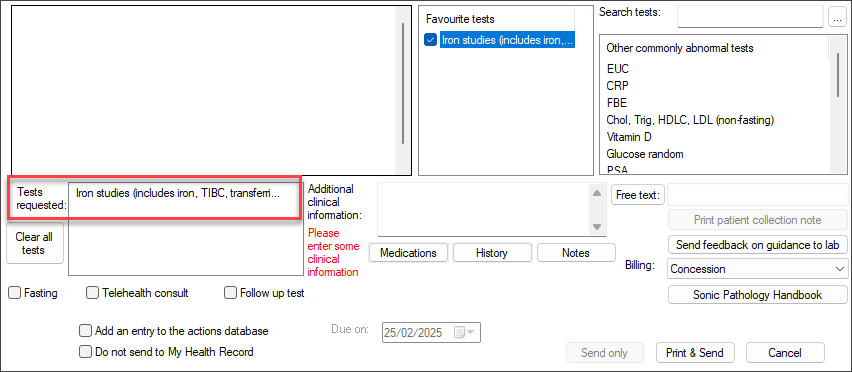
The context list will update based on the manually added tests:
Modify the clinical context order
You can modify the order of clinical contexts in the Pathology request screen to suit your practice. For example, a practice that specialises in diabetes or STIs might move relevant contexts to the top of the context list.
IMPORTANT If you do not see the option Use Clinical context ordering for Sonic labs in your screen, your Bp Premier database has not been updated for GBR. Run the setup file supplied to you by Best Practice Software.
Set the default laboratory
This step is optional, but if you only use one laboratory for GBR requests, setting a default laboratory will automatically select this lab in the Request Pathology screen.
- From the Pathology tab of the User preferences screen, select the GBR laboratory from the Laboratory Details list.
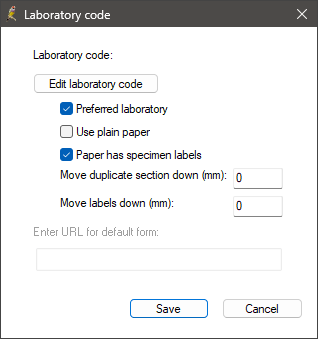
- Click Edit. The Laboratory code pop up appears.
- Tick Preferred Laboratory and click Save.
- Click Save to save user preferences.
Guidance Based Requesting is now enabled in Bp Premier.
Information correct at time of publishing (25 February 2025).



 AU
AU 