

This FAQ covers common patient questions, including how to update personal details, change a password, or delete an account if needed.
A Best Health account gives you the ability to book appointments online through Best Health Booking, either for yourself or for someone you care for. Your basic details are automatically filled in using the information your clinic already has in Bp Premier, making the setup process quicker and more accurate.
To keep your information secure, Best Health uses two-factor authentication when you register and log in. You'll need to provide both your email address and your mobile number when creating your account. Verification codes will be sent to your email and via SMS to confirm your identity and protect your account.
To register for a Best Health account, you'll need a unique email address to use as your username and a valid mobile phone number, which will be used to verify your account during the sign up process.
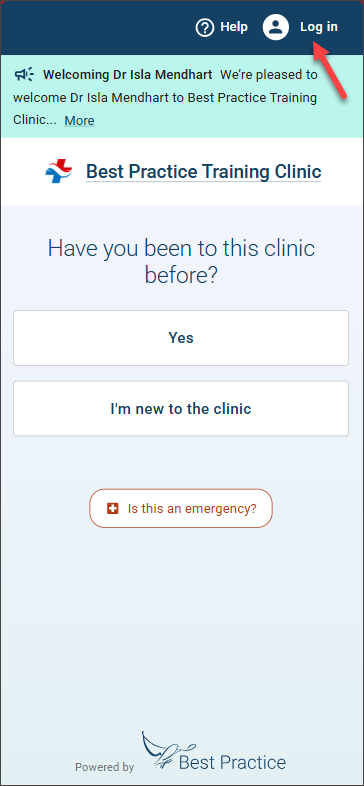
- On the practice’s Best Health Booking website and select Log in.
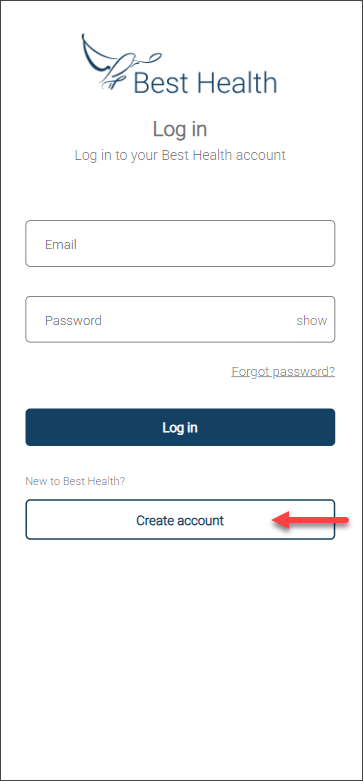
- Tap Create Account at the bottom of the screen.
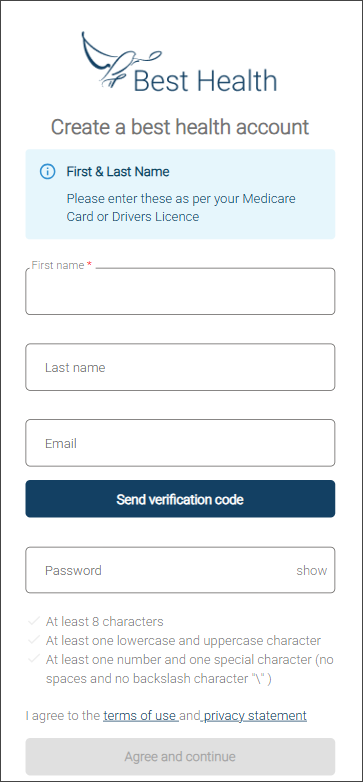
- Enter your First name, Last name, and the unique Email address you want to use.
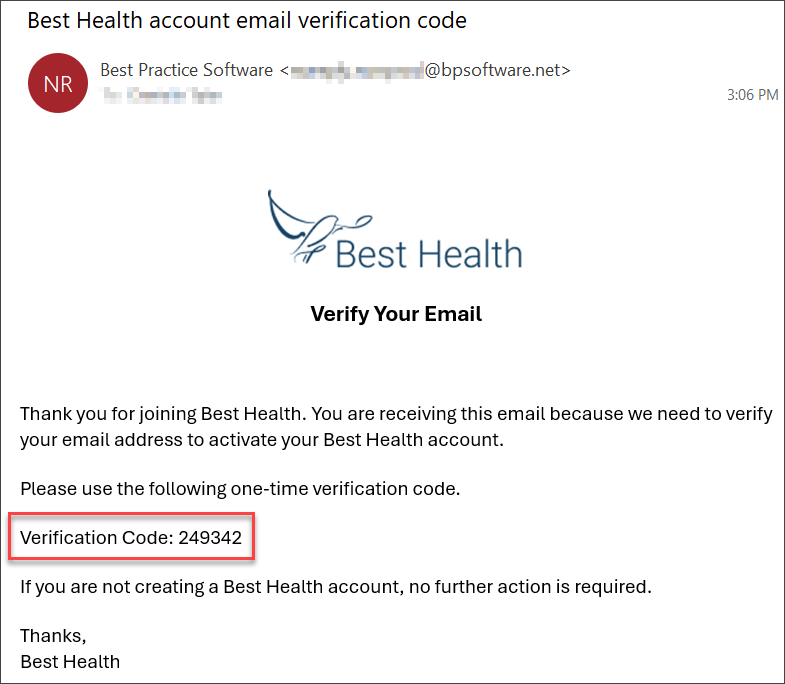
- Tap Send Verification Code. A verification email will arrive shortly with the subject 'Best Health account email verification code'.
- Copy the verification code from the email and paste it into the Verification Code field in Best Health, then select Verify Code.
- Create a strong Password that meets the listed requirements.
- Review the Terms of Use and Privacy Statement, then select Agree and Next.
- Enter the Mobile number you want linked to your account. The leading zero is optional, either format is accepted.
- Tap Send Verification Code.
- An SMS will arrive with a six digit code. Enter this Verification Code in Best Health and select Verify Code.
- Tap Create Account to complete the final details.
- Enter your Date of Birth and Home Address, then tap Submit.
It includes a line such as: Verification Code: 123456.
TIP Can't find your verification email? Try Why can't the practice see my appointment? below.
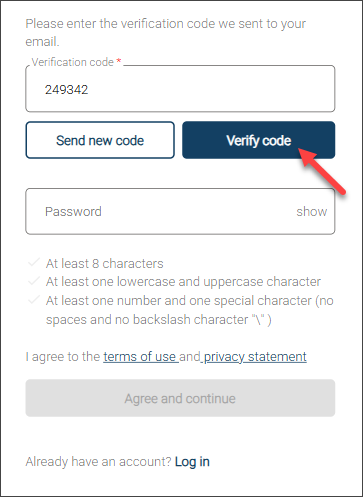
If the code doesn’t work, choose Send New Code to request another.
Your account is now ready. Thanks for signing up with Best Health from Best Practice Software.
Best Health Booking relies on you to select the correct patient type ('new patient' or 'existing patient'). While there's no automatic check against medical records, this honesty based system ensures a smoother booking experience.
The definition of an 'existing patient' can vary greatly (for example; having seen the doctor before, having previous appointments, having transferred records). This approach prioritises accurate information and efficient database management.
If you are still unsure about which patient type to select, contact the clinic reception for assistance.
This article contains instructions on how to change the default screen zoom when using a mobile browser. The following are examples for both Android and iOS devices.
Android
Google Chrome
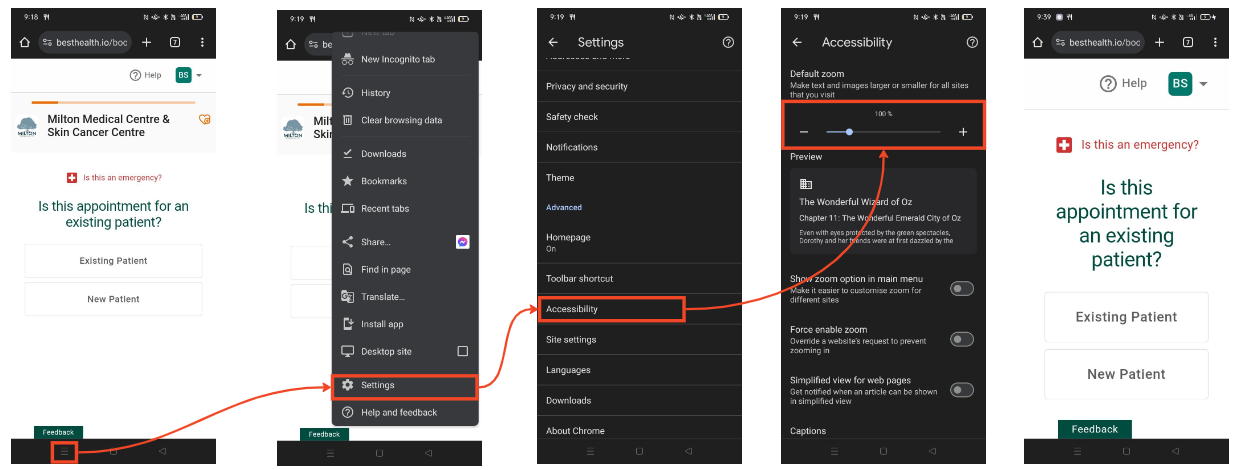
- Select the 'hamburger' menu option from the browser.
- Select Settings.
- Select the Accessibility option.
- You can now increase the default screen zoom by selecting the plus '+'.
iOS
Safari
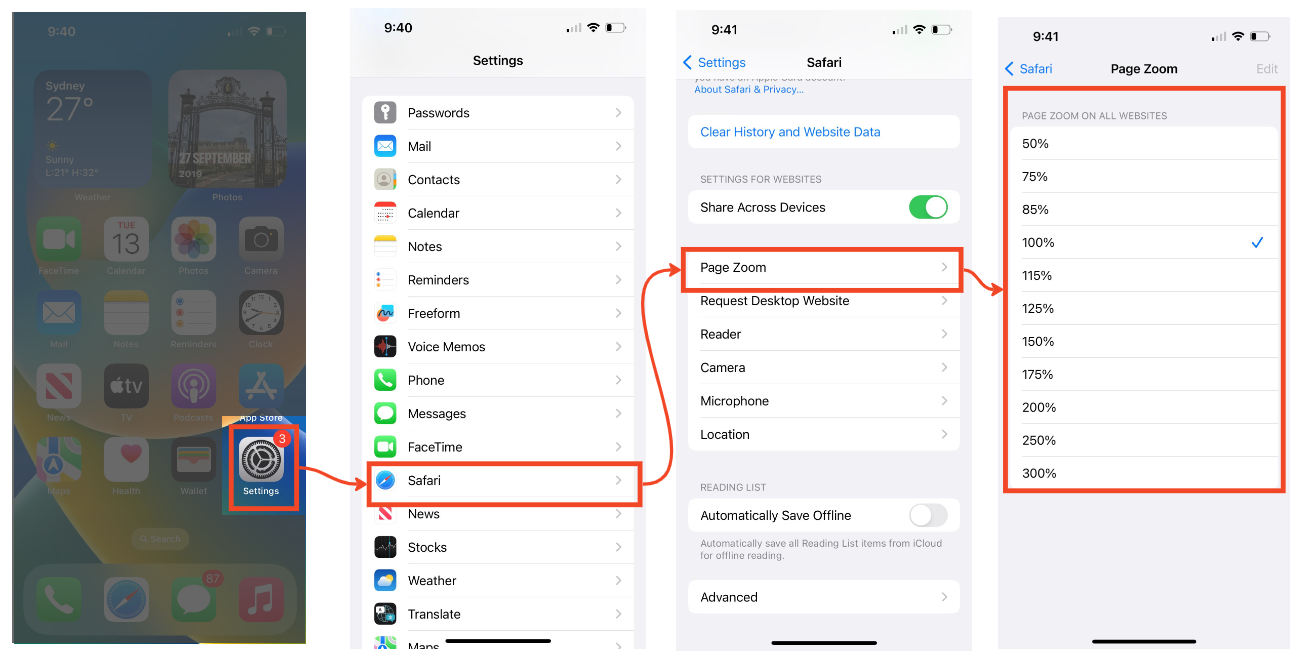
- From the home screen, select Settings.
- Scroll down to select the option for 'Safari'.
- Scroll down to select 'Page Zoom'.
- Select an appropriate zoom setting.
iOS
Google Chrome
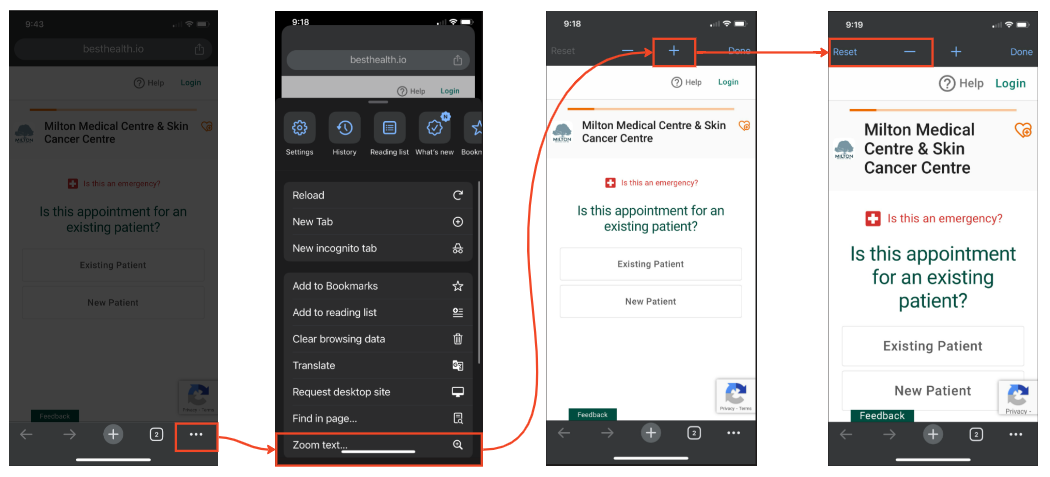
- From the browser, select the ellipses (three dots).
- Select the 'Zoom text' menu option.
- Increase the screen size by clicking the plus '+'.
- Decrease the screen size by clicking the minus '-' or 'Reset'
If the practice is unable to find the patient’s appointment, it may be because the booking was reserved but not fully confirmed in Best Health.
To check this, the patient can follow the steps below.
- The patient can check their spam or junk folder, as email providers sometimes send messages from new or unfamiliar senders there.
- They can also look in any other folders they may have set up, such as "New", "Miscellaneous", or "Social", and search for the words 'Best Health' in the subject line.
- If the email still can't be found, the patient can return to Best Health and review the email address entered during account creation. Once the address is confirmed as correct, they can tap Send New Code to request another verification email.
If no booking confirmation is found, it may mean the patient did not complete the booking by selecting the Book my appointment button, which is required to finalise the appointment.
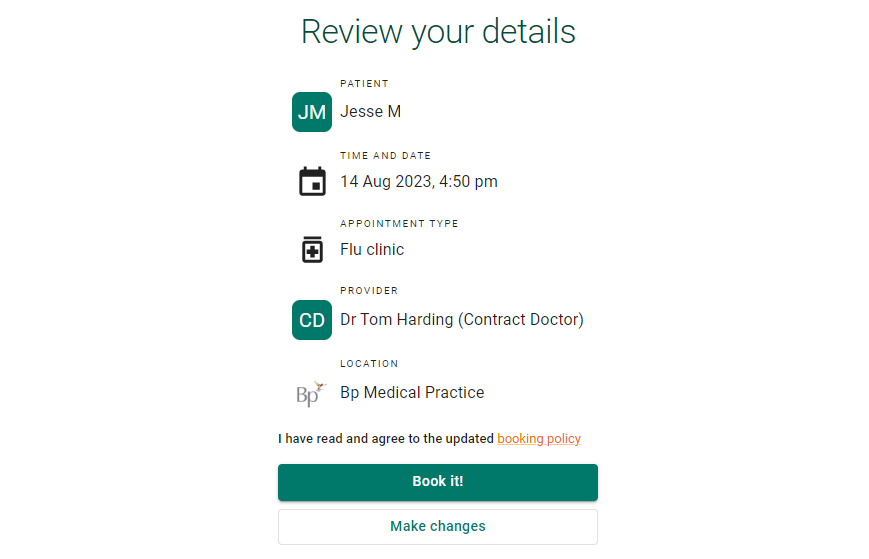
If the patient did receive the email but the practice still cannot find the booking, the patient can provide the practice with:
- The email address used for their Best Health account
- The date and time the booking was attempted.
The practice can then report the issue to Bp Support for further investigation.
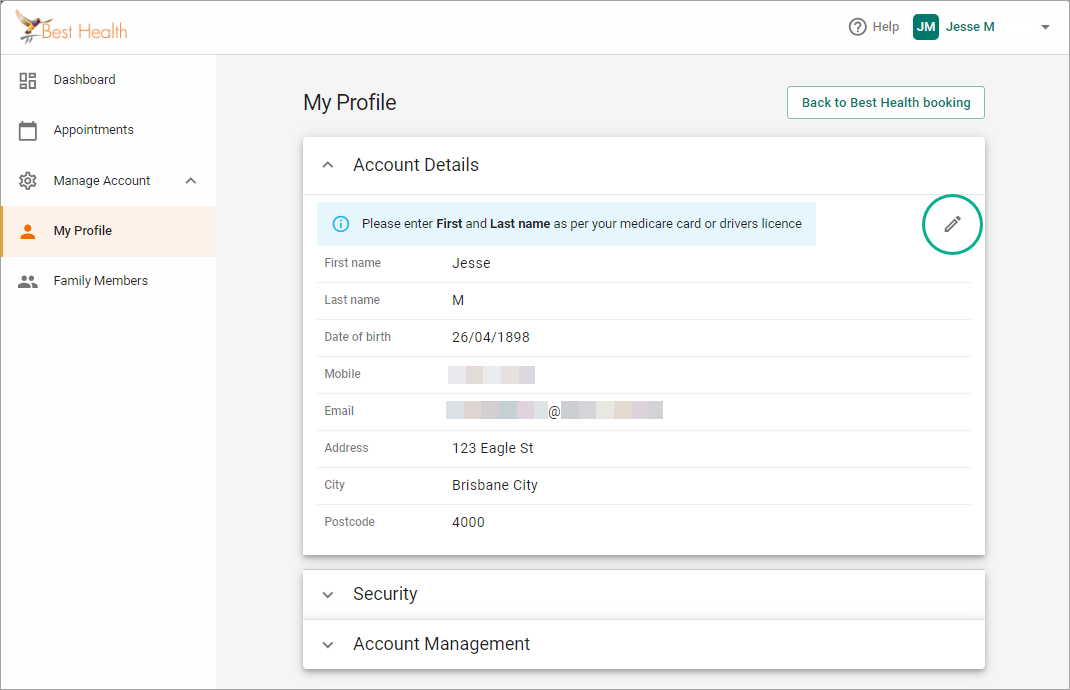
To update the email or phone number linked to your Best Health Booking account, first log in to your BHB account.
-
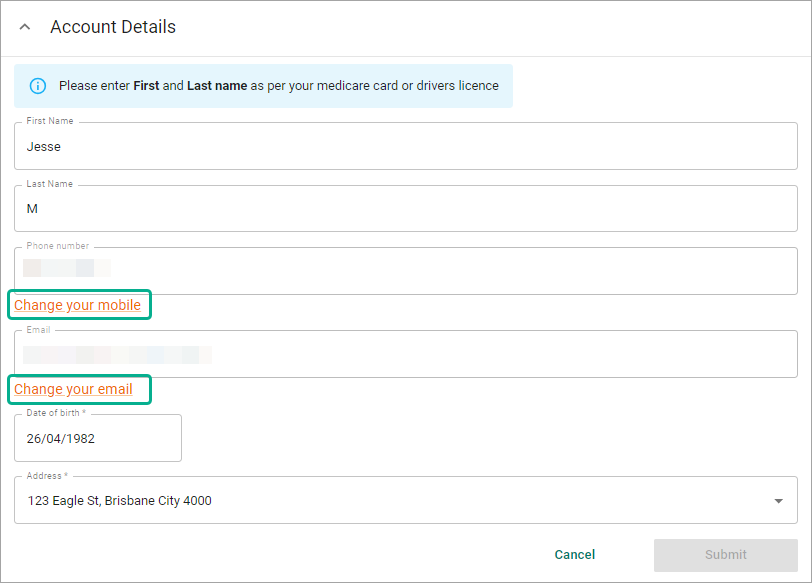
From My Profile, select the edit icon (pencil) in your Account details.
-
Select 'Change your email' or 'Change your mobile'. In this example we will select the option to update the email address.
-
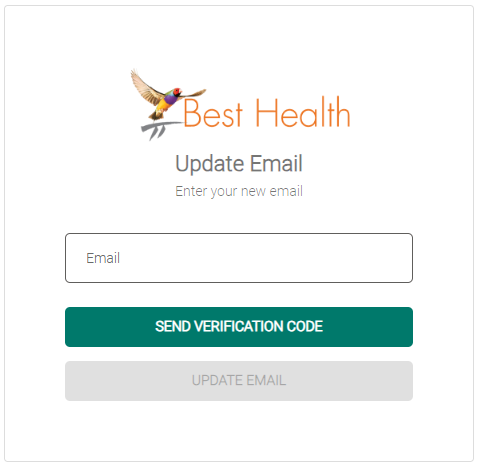
To confirm, enter your account password.
- Enter your new email or mobile phone number.
- Enter the verification code that was been sent to your new email address or mobile number and select Update.
- The new email or mobile number will be verified and saved to your Best Health Booking account.

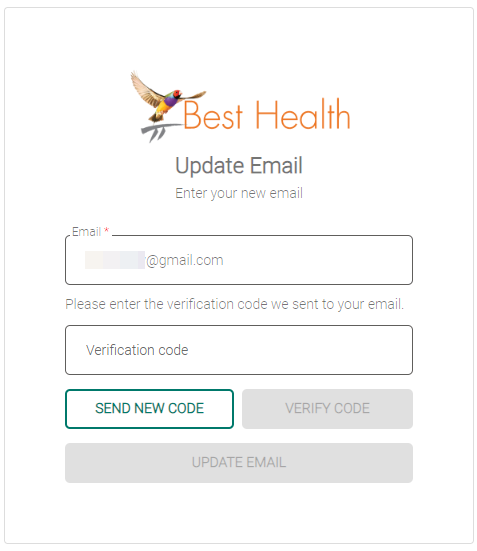
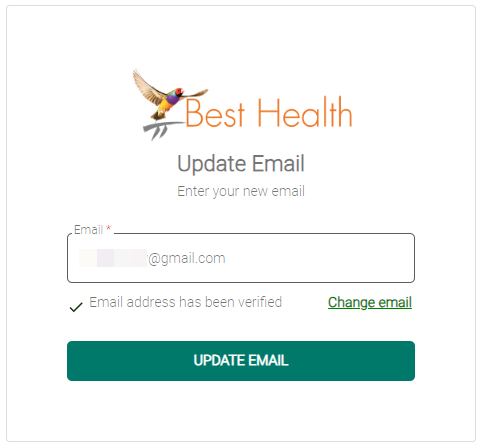
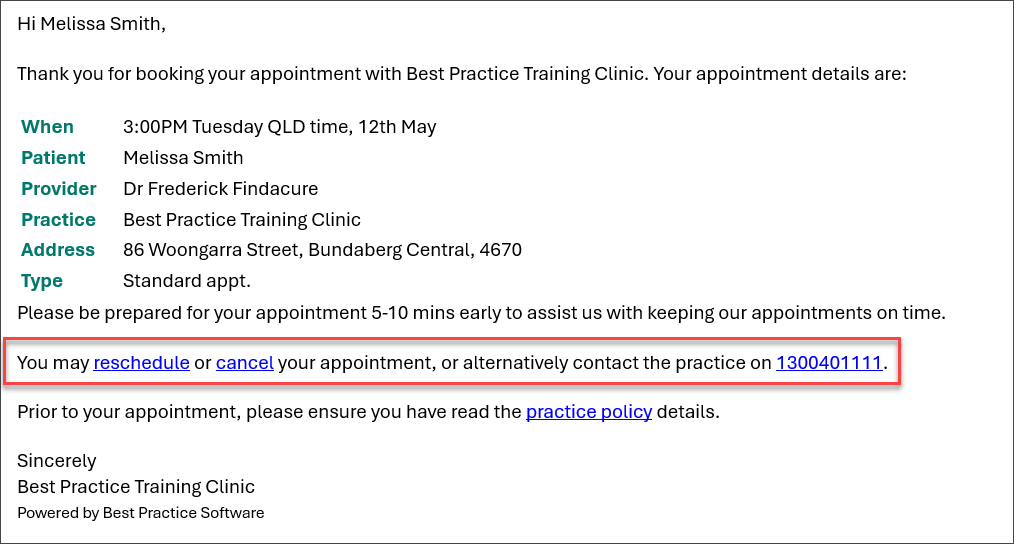
The verification sent during account creation looks like the following:
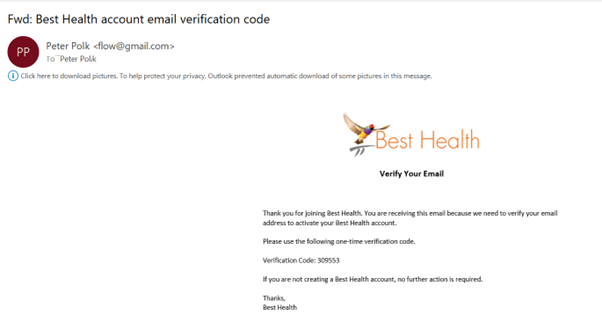
If you don’t see the email in your inbox, try the following:
- Check your spam or junk folder. Some email providers automatically redirect messages from new or unfamiliar senders.
- Look through any other folders you may have set up, such as New, Miscellaneous, or Social.
- Search your mailbox for the subject keywords 'Best Health account verification'.
- If the email still isn’t there, return to Best Health and double check the email address you entered when creating your account. Make sure it’s correct, then tap Send New Code.
If the email landed in your junk folder, you can usually drag it into your inbox. Most email clients will then recognise messages from Best Practice Software as legitimate going forward.
Every time you book an appointment online, Best Health sends a confirmation email with details and options to cancel or reschedule to your account's email address. However, If you can't find this email, follow the guidelines in Why can't the practice see my appointment?. It may be in your junk folder, or be automatically filed under a folder.
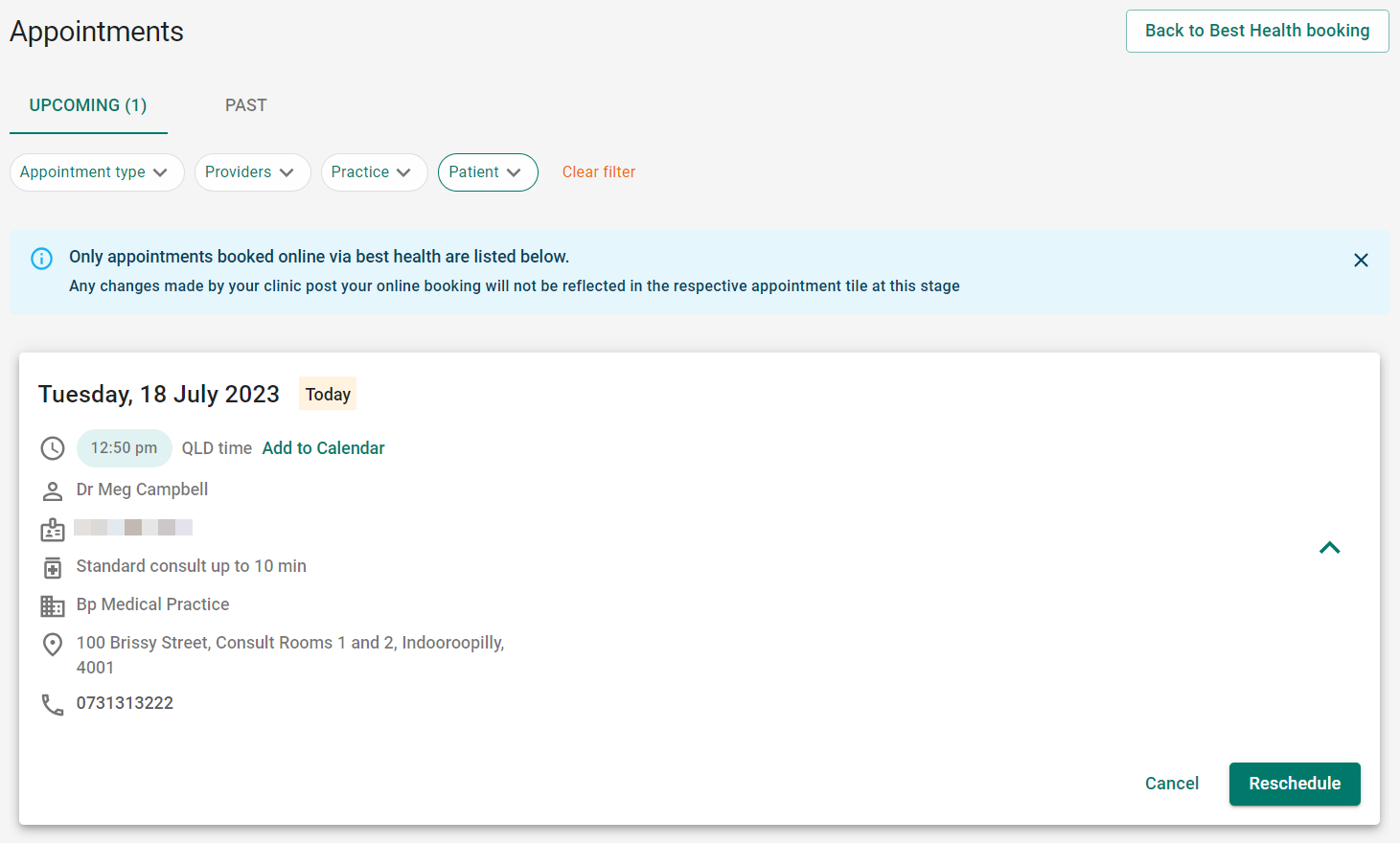
These details are also stored in your Appointments menu in Best Health, with the same details and options to cancel or reschedule your appointment,
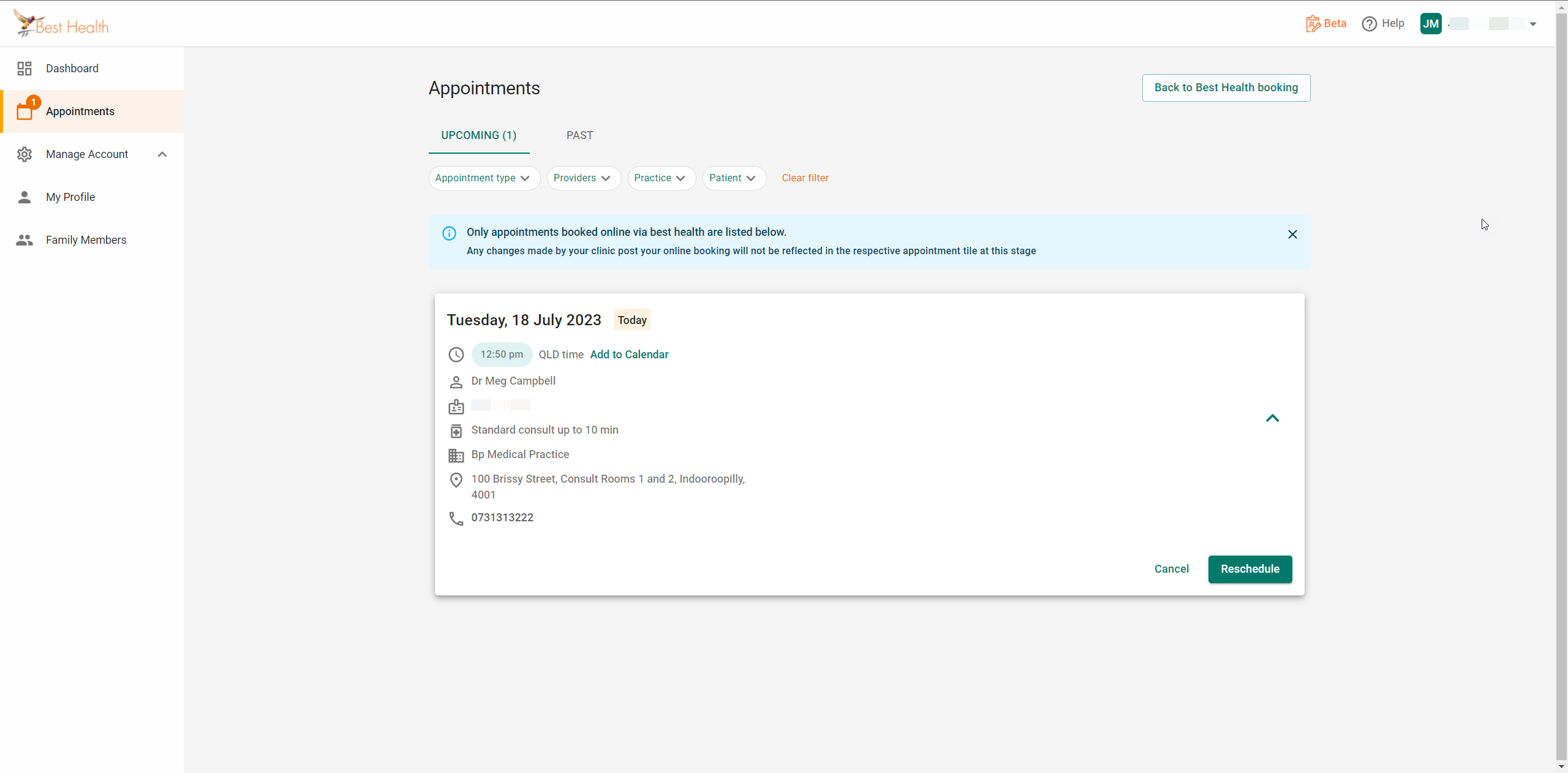
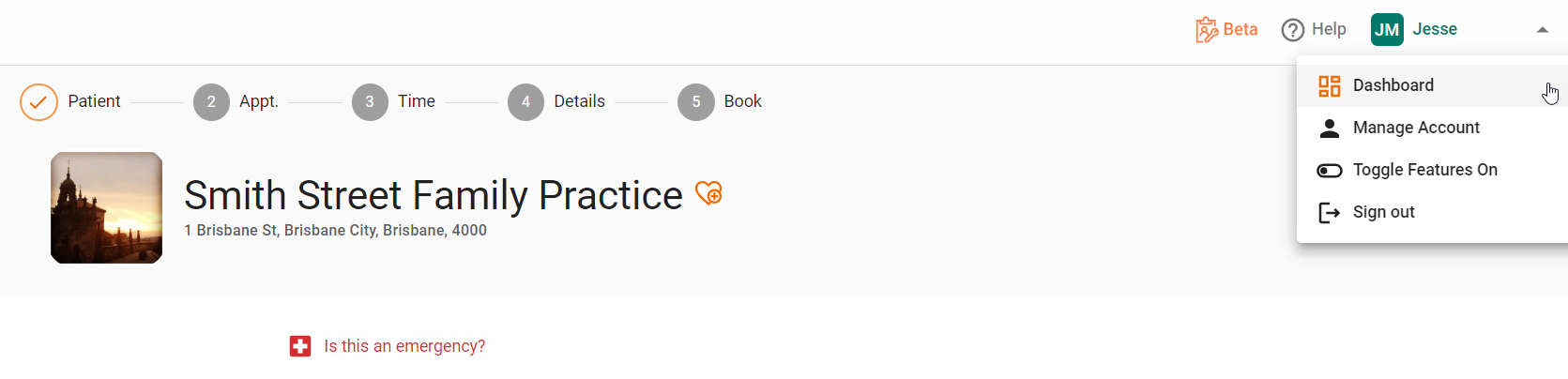
To access this screen, log in to your Best Health account and select the Appointments icon on the left hand side. If you are already logged into Best Health Booking, select your name in the top right to open the menu and select Dashboard or Manage Account to view these options.
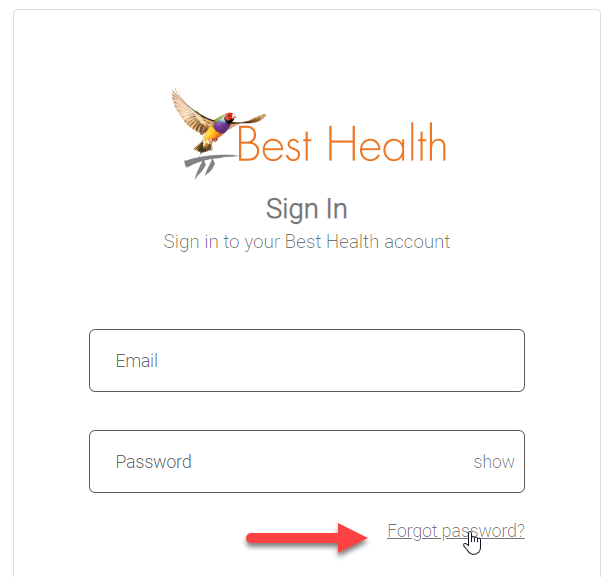
Yes. The Best Health sign in screen has a Forgot password link. Tap this button to send a verification code to your Best Health account email address and reset your password.
Yes, within the practices' cancellation window. You can also reschedule an appointment, rather than cancel. From within Best Health, your Dashboard menu and Appointments menu will both display your upcoming appointments and have the option to cancel or reschedule.
When you book an appointment, a confirmation email is sent to your email address as well. The email contains a link to cancel the appointment if necessary. Click the link to open a Cancel Booking popup to confirm the cancellation.
If you try to cancel outside of the cancellation window, you will receive a 'Cancellation not successful' message and must contact the practice directly to cancel the appointment.
Yes. There are several ways to reschedule an appointment.
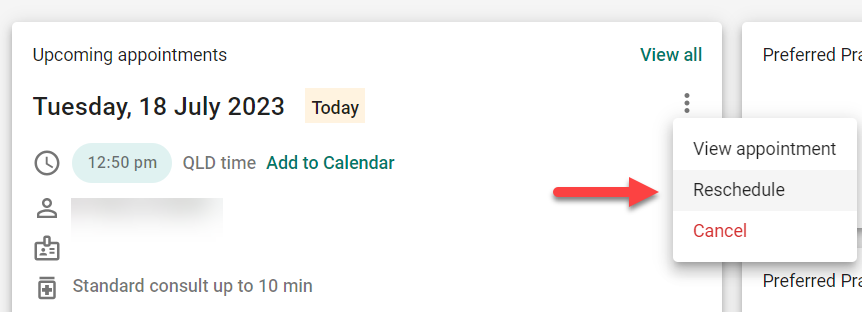
- From within Best Health, open the Dashboard. Upcoming appointments can be cancelled or rescheduled by selecting the ellipses (three dots) on the right. The same option is available from the Appointments tab on the left side of Best Health.
- You will also have received an Email confirming your appointment. Near the end of the email, look for the line: You may reschedule or cancel your appointment or alternatively contact the practice. Tap Reschedule to open Best Health and change the appointment date and time.
- If you attempt to reschedule outside the allowed cancellation window, you will see a Cancellation not successful message. You must contact the practice directly to cancel or change the appointment.
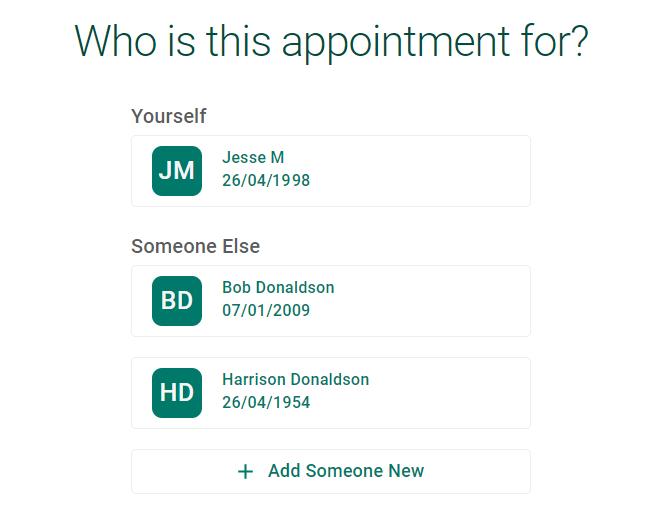
Yes. When prompted with 'Who is this appointment for?' when booking, select to Add Someone New.
Behind the scenes, yes! Your Best Health account will work across both web and mobile.
Each appointment type has a duration, such as ten minutes for a standard consult or twenty minutes for a longer consult.
The appointment type you selected may have a duration that is longer than the doctor's available time in that slot. You could try choosing a different appointment type if you can't select another time. For example, if you selected a long appointment and there is limited availability, a standard appointment may fit the available time.
- Log in to your Best Health account.
- In the left hand menu, select My Family.
- Find the family member you want to remove and click Edit.
- On the Edit Family Member screen, select Delete this family member.
- A confirmation message will appear. Click Delete to confirm.
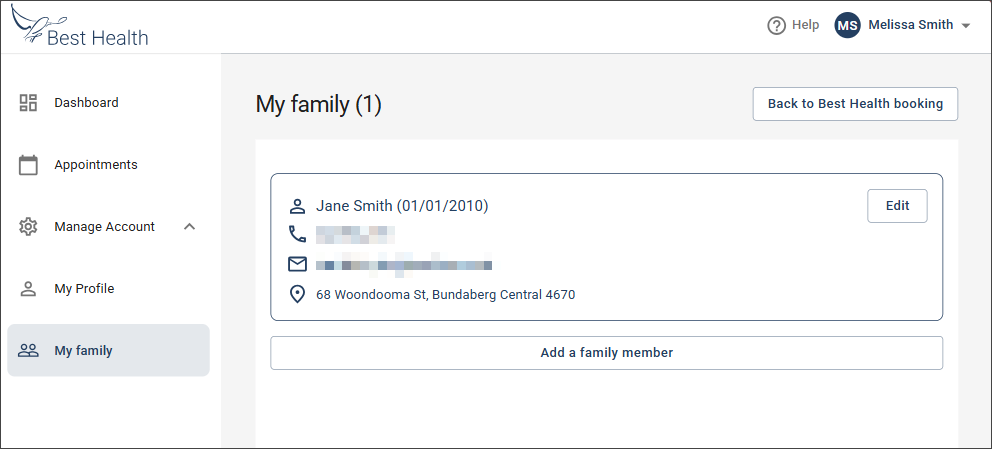
This page shows all family members you have added.
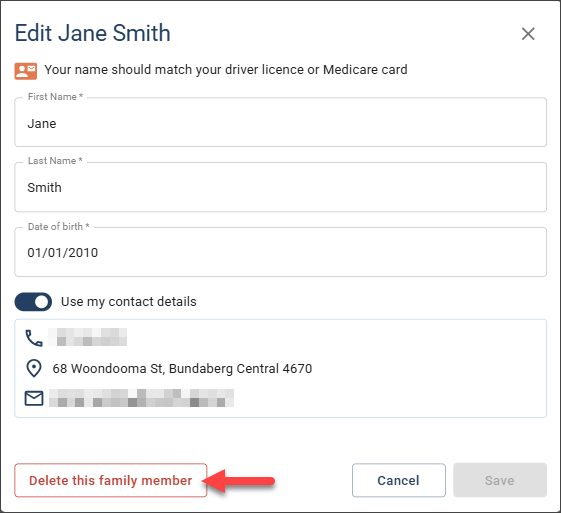
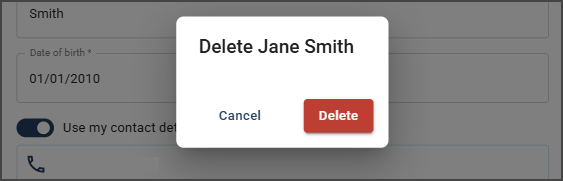
The family member will be removed from your account.
We're sad to see you go, but yes you can.
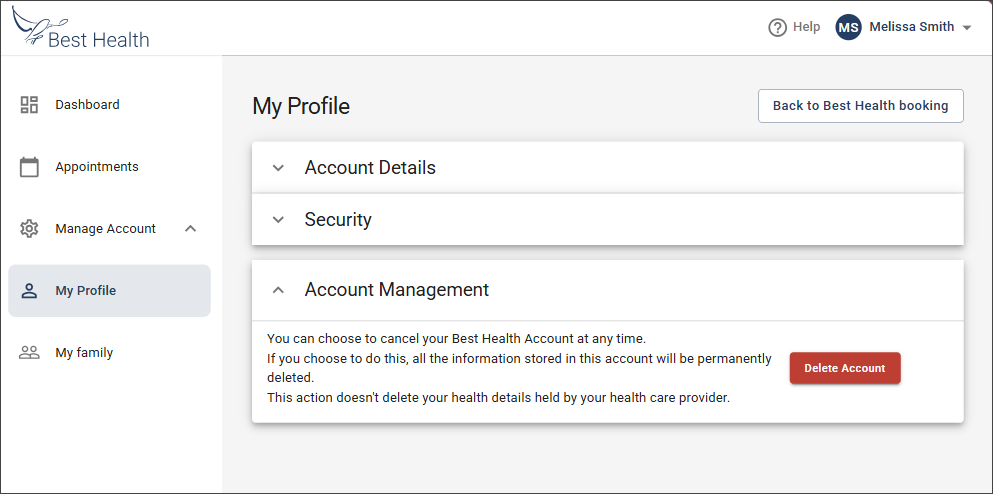
- Log in to your Best Health account
- In the left hand menu, select My Profile.
- Tap Account Management to open your options. Click Delete Account and confirm.
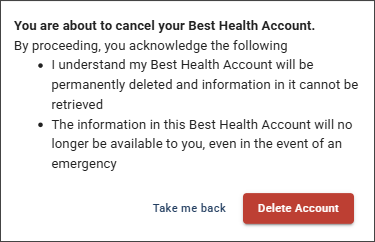
All data in your account will be deleted. You can recreate your account at any time, but you'll have repeat the account creation process.


 AU
AU 