
This article describes how to set up your clinic in Bp Omni to use Best Health Booking (BHB). It explains how to complete the initial Best Health Booking (BHB) configuration and how you can adjust your online booking settings to allow patients to make appointments through the online booking portal.
IMPORTANT If Bp Omni is unable to connect to Best Health Booking, the Online Booking settings will not be available.
In this article:
Before you begin
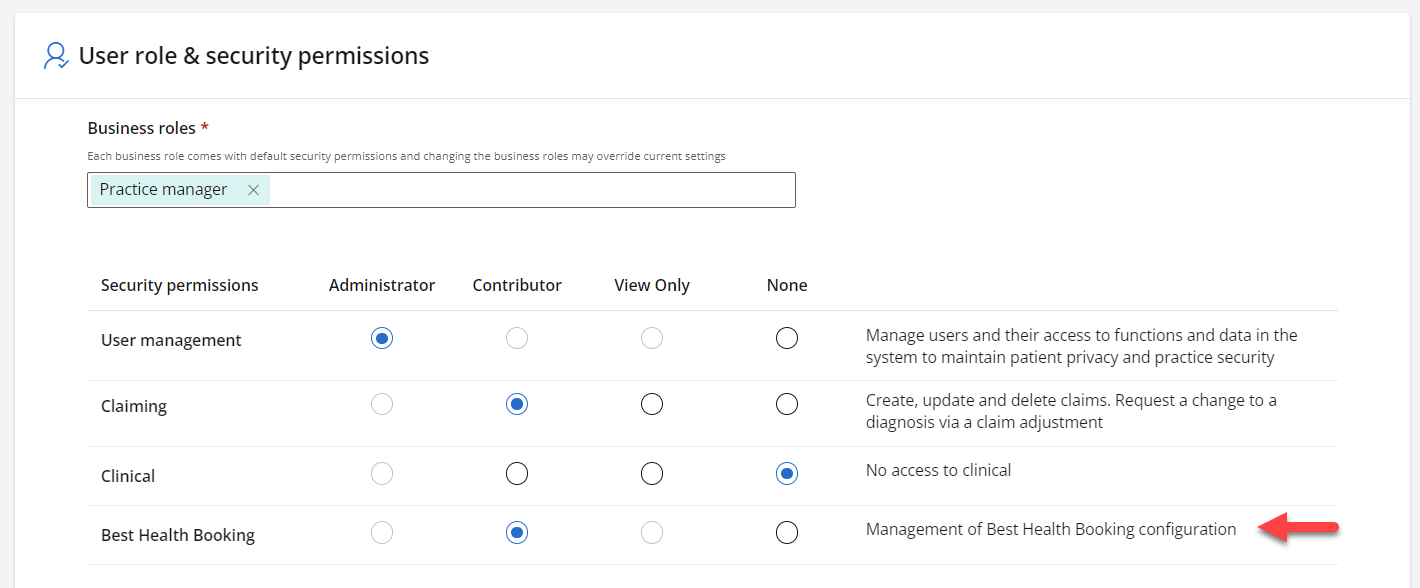
To access Best Health Booking in Bp Omni, users must have the appropriate User Role and Security Permissions. To manage the Best Health Booking setup, the Contributor permission level is necessary.
To configure a user's business role and security permissions, you must first log in as a user with the Business role of Owner or Practice Manager.
- Select your profile icon in the top-right corner of the menu bar and select Settings. The Users list screen will appear.
- Enter the user name in the search box, and click to Edit.
- Enter the user's Business roles in the User role & security permissions section. Business roles define the user's access privileges and are used for security.
- Set the security permission Best Health Booking to Contributor.
- Click Save.

Configure Best Health Booking
- Select your profile icon in the top-right corner of the menu bar and select Settings. The Users list screen will appear.
- From the list of options on the left of the screen, click Config > Online Booking.
The Online Booking screen allows you to configure your practice information and set up rules for managing bookings and appointment cancellations.
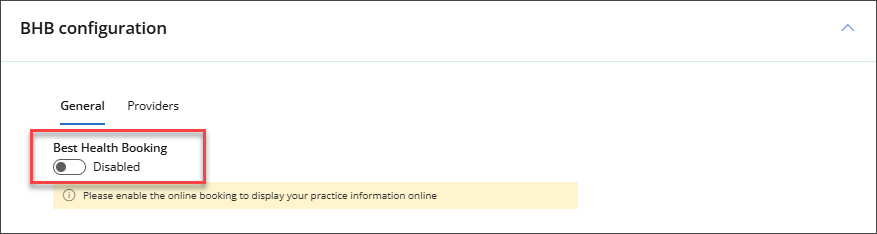
Leave Best Health Booking set to Disabled until you have completed all the steps in this article to avoid incomplete bookings.
General Settings
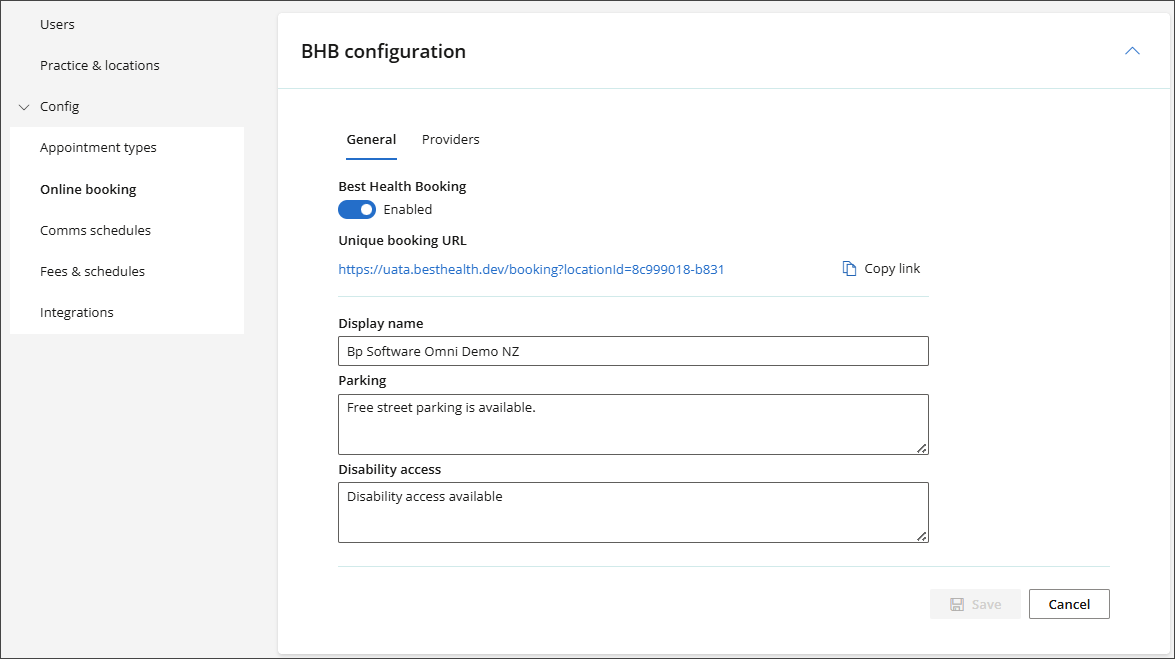
- The Unique Booking URL is generated for you and is used to embed to practice websites or social media.
- Enter your practice online display name, parking and disability access to be displayed to patients that are booking online.
- Click Save.
Providers Settings
This process allows online booking for a provider and determines the appointment types that can be scheduled online for that provider.
For example, a provider may choose to prevent new patients from scheduling appointments online.
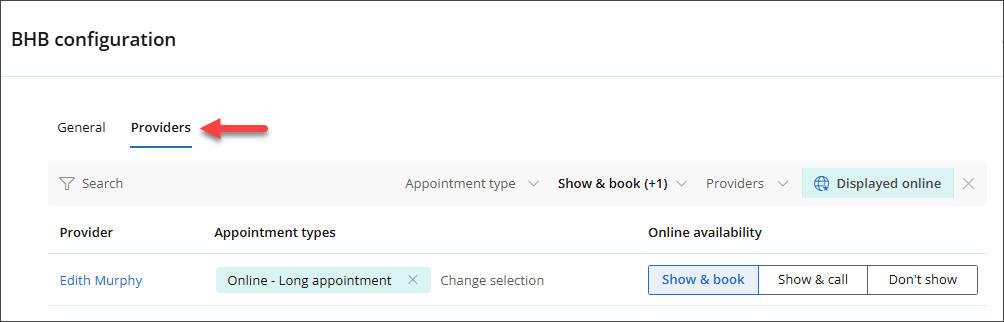
- In the top-right of Bp Omni, select your profile icon, then select Settings > Online Booking > BHB Configuration > Providers.
- To accept online bookings, you must first allocate Appointment types to the Provider. In the Appointment Type field, select the Appointment Type from the dropdown menu.
-
In Online Availability, select Show & book, Show & call or Don’t show.
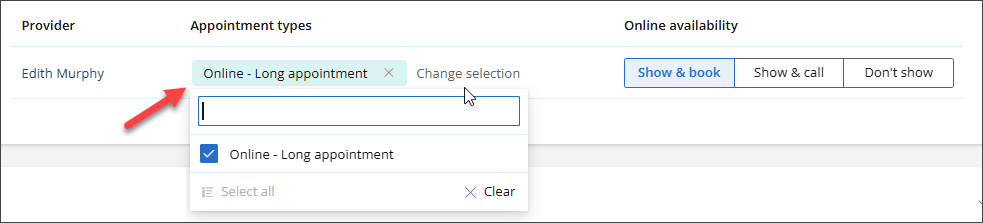
If you have not yet set up Appointment types for online booking, see the article on Online Appointment Types for more information.
Create a Provider profile
From Settings > Config > Online booking, and then select the tab for Providers.
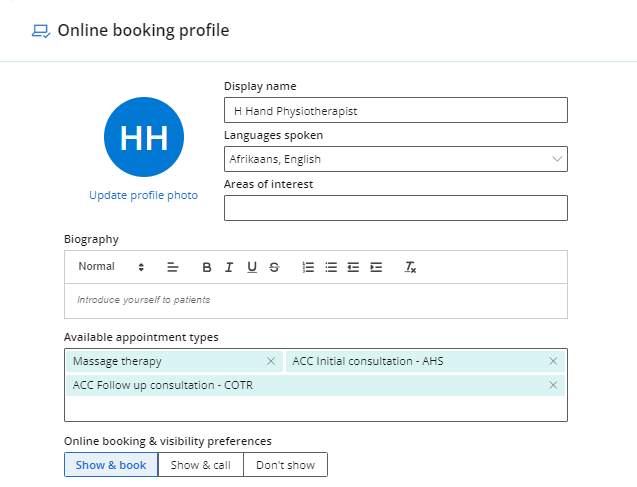
- Select a provider from the list to open their Online booking profile.
- The Display name is the provider's name as displayed to the patient or client during booking.
- Add the Languages spoken by the provider.
- Add the provider's Areas of interest.
- Use the text box and the editing toolbar to create an engaging Biography for the provider that will be displayed to patients or clients.
- Set the Online booking & visibility preferences to reflect the provider's desired availability online.
- Select Save.
- Repeat for each provider who wishes to be bookable online.
What if a Provider prefers to be booked by phone?
If a provider prefers to be booked by phone, set Online availability to Show & call under the 'Providers' drop down. This can also be done from the provider's Online booking profile.
The provider will still be listed in the online booking portal, but a message will display to the patient or client that they must call the clinic to book their appointment. This option ensures the provider is still seen as available to patients who are booking online.
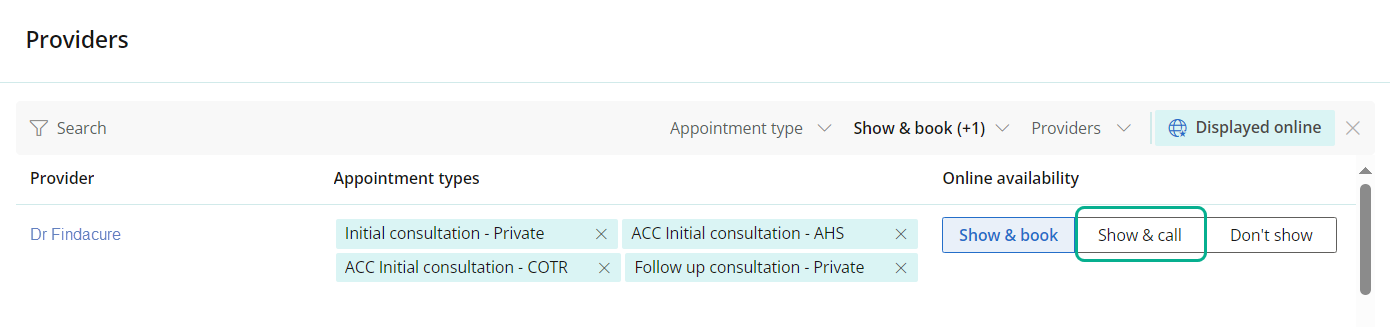
NOTE To enable 'Show & call' providers, select the appointment types that are applicable to your call only providers.
What if a Provider prefers not to be booked online or by phone?
If a provider prefers only to be booked at the clinic, set Online availability to Don't show. The provider will not appear online.
Online Booking Settings
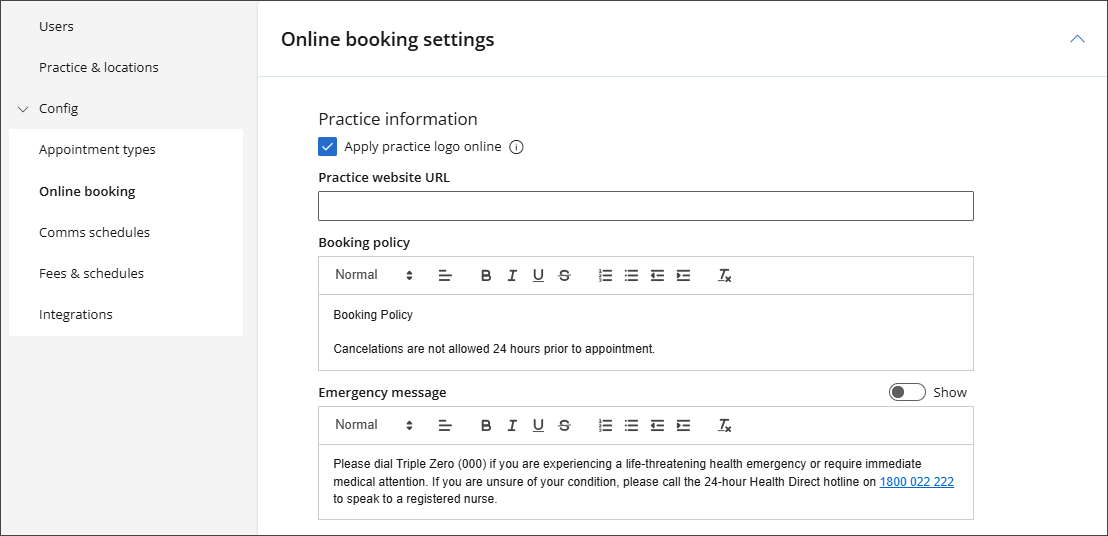
From Settings, select Config > Online bookingand then select the dropdown for Online booking settings.
Practice information
- Click 'Apply practice logo online' to show the practice logo when patients or clients book online.
- Enter your Practice website URL.
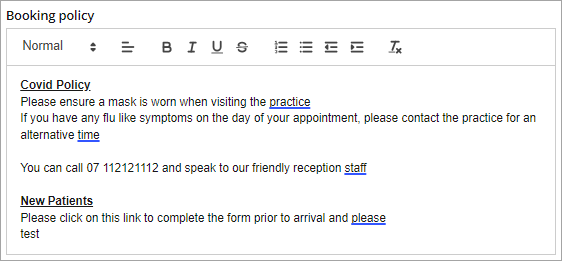
- Create a Booking policy that is shown to patients or clients during the online booking process, using the text editor controls.
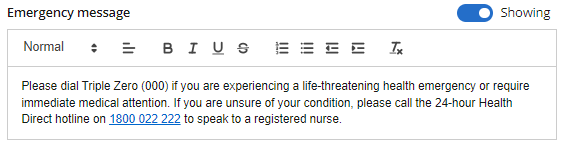
- Create a custom Emergency message or use the default message to notify patients or clients who to contact in case of emergency. This can be turn off by toggling the switch to the left (off).
- Set Appointment cancellation / rescheduling to allow or deny the ability to cancel or reschedule an appointment online. If you allow cancellations online, set the time period before the appointment period during which the patient can cancel.
- Set the appointment types that are NOT allowed for cancellation online and must be cancelled or rescheduled by calling the clinic.
- Set Booking availability time frames & limits to the number of weeks into the future that patients can book online and the maximum number of daily appointments a patient can book online.
- Limit the Daily appointments number per patient. If you switch this toggle to 'On', set the maximum number of appointments a patient can book in a day
- Select Save.
Hover over the information icon to change your practice logo.
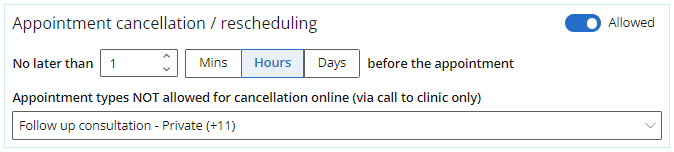

For example, if set to '1 Hours', patients can book an 11:00 am appointment at any time up to 10:00 am that day.
Activate Online Booking
Once you have completed entering your configuration details for all practice locations that offer online booking, and you are ready to test live, you can now activate Online Bookings.
- Select your profile icon in the top-right corner of the menu bar and select Settings. The Users list screen will appear.
- From the list of options on the left of the screen, click Config > Online Booking.
- In BHB Configuration, set the Best Health Booking switch to Enabled.
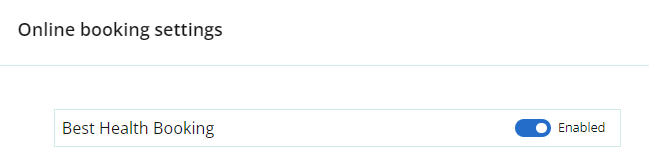
Patients can now book appointments through your website.
Last updated: 10 December 2025.



 AU
AU 