
This article explains how to send an individual appointment SMS from the Appointment Book in Bp Omni.
In this article:
Before you begin
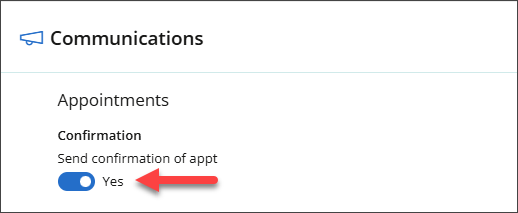
- Ensure Send confirmation of appointments has been enabled in Settings > Practice & Locations > Communications. See Set Up Comms Schedules for more information.
- Confirm that the recipient’s Communication Preferences are enabled.
- Appointment reminders
- Appointment confirmations
- Clinical reminders
- Billing correspondence
- Online forms.
Communication preferences are set when editing the patient, client, organisation or individual's demographic details from the Address book.
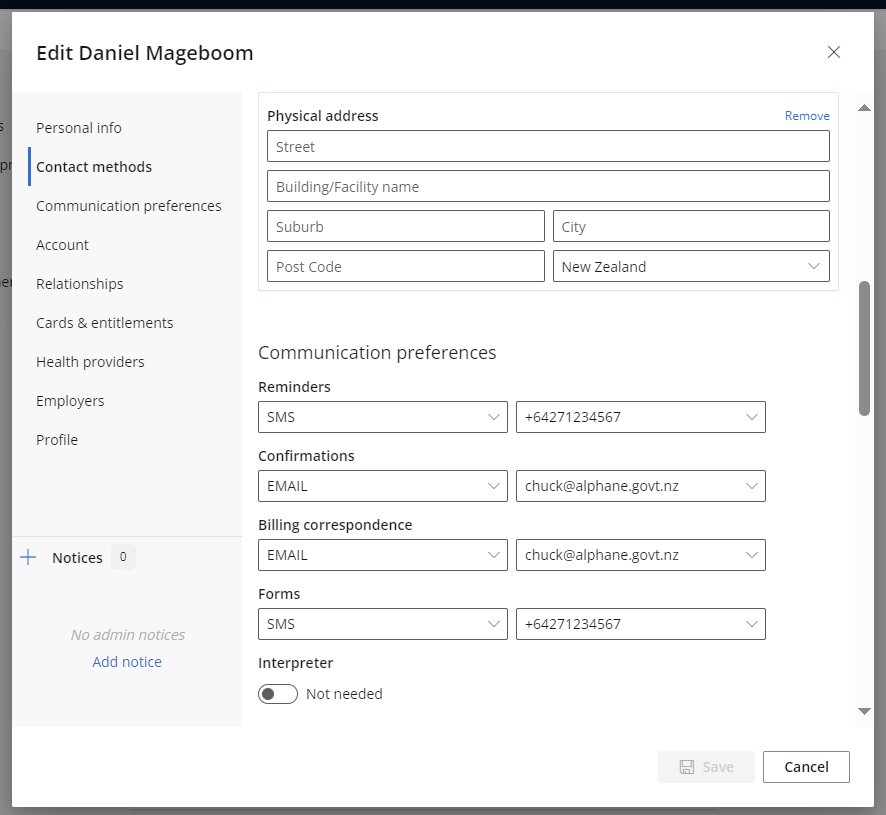
Select EMAIL, SMS or OPTOUT from the dropdown selection for:
Send an Individual Appointment SMS
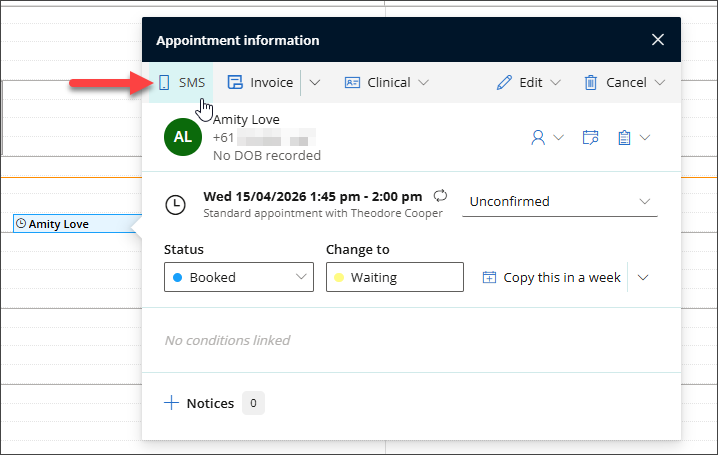
- To send an individual appointment SMS, open the Appointment Book and locate the patient you want to contact. Click the patient’s name, then select SMS.
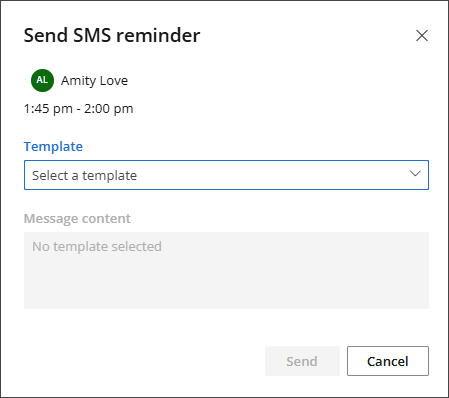
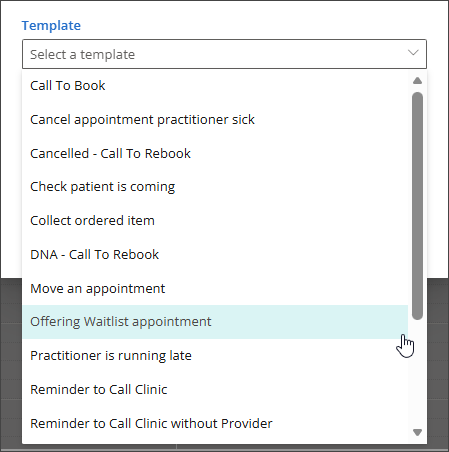
- The Send SMS Reminder modal will appear. Bp Omni provides default Comms Templates, which cannot be edited before sending.
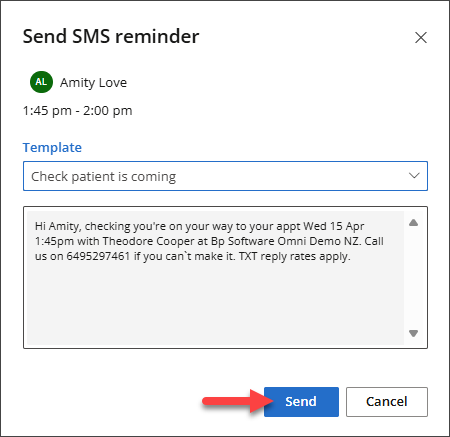
- Select a Template from the list.
- Click Send.
- A banner will appear confirming that the message has been queued for sending.
-
To follow up or check the message status, go to Appointments > Appointment Reminders in the top bar.
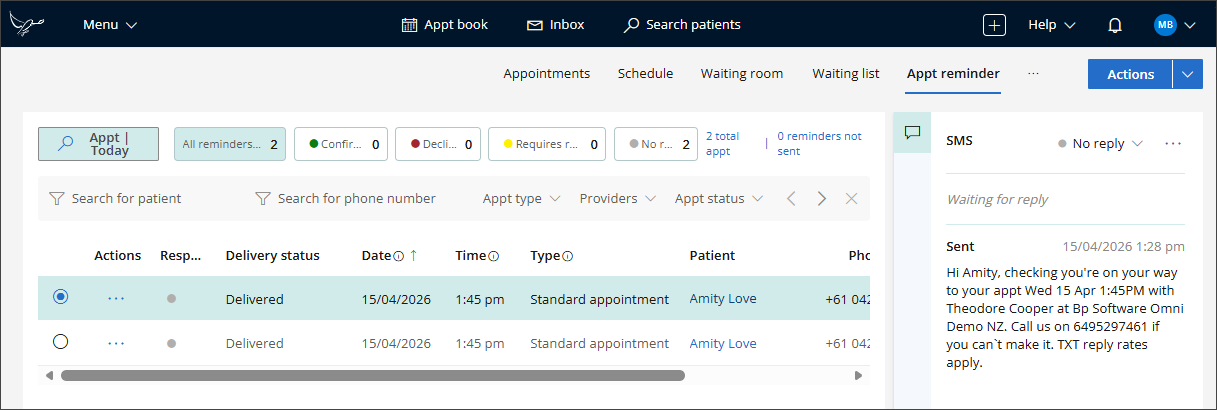
For more information on managing appointment communications, see Manage Appointment Reminder Replies.

SMS character count
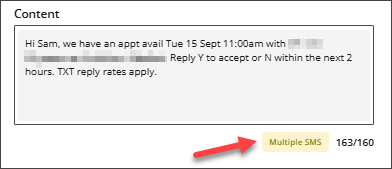
The SMS reminder screen displays the number of characters entered against the 160-character SMS length. When a message exceeds 160 characters, the character count is highlighted and the Multiple SMS badge is displayed.
SMS appointment attendance statuses
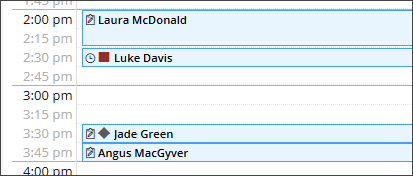
SMS appointment attendance statuses use a combination of colours and shapes to identify appointment reminder responses:- Green circle: Confirmed.
- Red square: Declined.
- Yellow/brown triangle: Requires review.
- Grey diamond: No reply.
These indicators appear on appointment tiles, in appointment confirmation options, and throughout the Appointment Reminders table, including the filters and SMS reply information.

Last updated: 16 September 2026.



 AU
AU 