
This article shows how to set up a referring provider to receive RSD messages through HealthLink, and send and receive RSD messages.
Before you begin
- Healthlink software must be installed and configured. See the Healthlink website for further details.
- Healthlink RSD messaging must be configured in Bp VIP.net. See Set up RSD for more information.
Add the External Provider RSD Address
The following instructions demonstrate how to record EDI addresses for external (referring) providers. You will need security rights to access the Setup menu.
- Click Setup > Providers > Other Clinics.
- Select the provider from the Providers screen and click the Modify button.
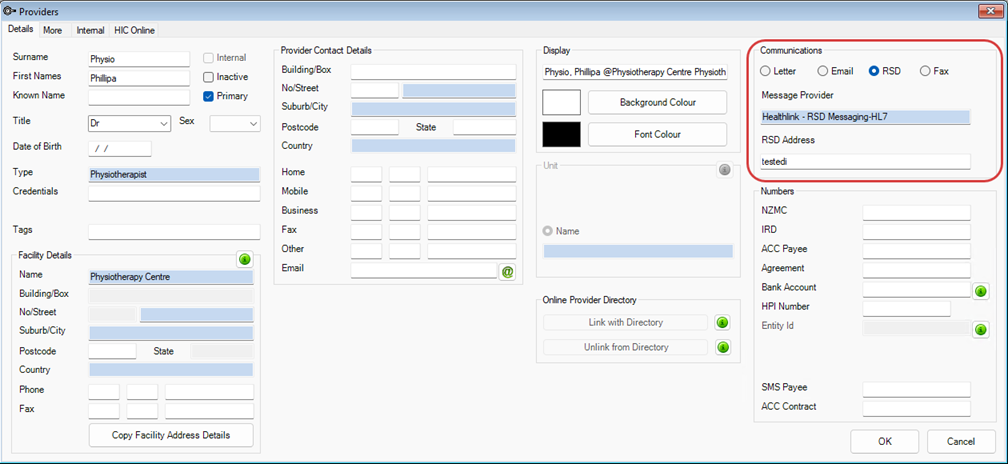
- In the Providers screen, select the RSD radio button in the Communications section.
- Enter the Message Provider of HealthLink – RSD Messages HL7.
- Enter the Provider's HealthLink address in the RSD Address field.
- Click OK to save.
Sending RSD Messages
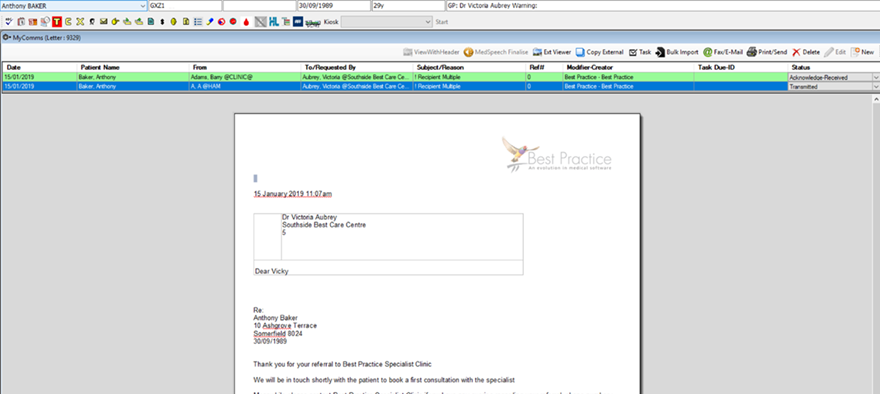
When sending a letter through RSD, Bp VIP.net will pick up the preferred method of communication and automatically send the letter through HealthLink.
When the letter is created and ready for sending, click the Print/Send button.
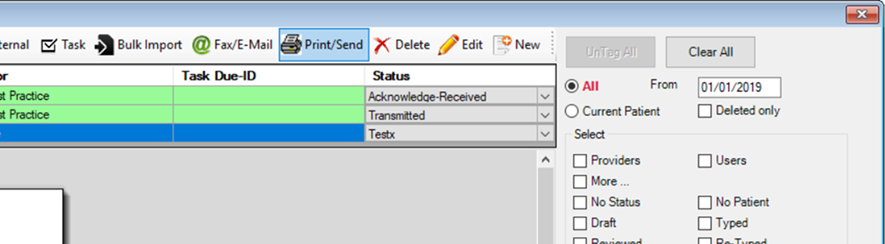
As the provider has been set up with a preferred Communication of RSD, Bp VIP.net will automatically send using HealthLink.
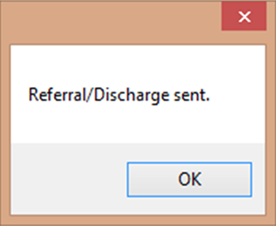
If one of the recipients of the letter has RSD as the preferred method of communication, the following message will display when the Print/Send button is clicked after creating the letter.
Troubleshooting
In the Outbox screen, click Failed RSD to view any communications that have failed to send from your clinic.
An issue with sending an RSD message through Bp VIP.net is often due to an incorrect RSD address. Verify the recipient's address., update details in the Providers screen and send again.
Receiving RSD Messages
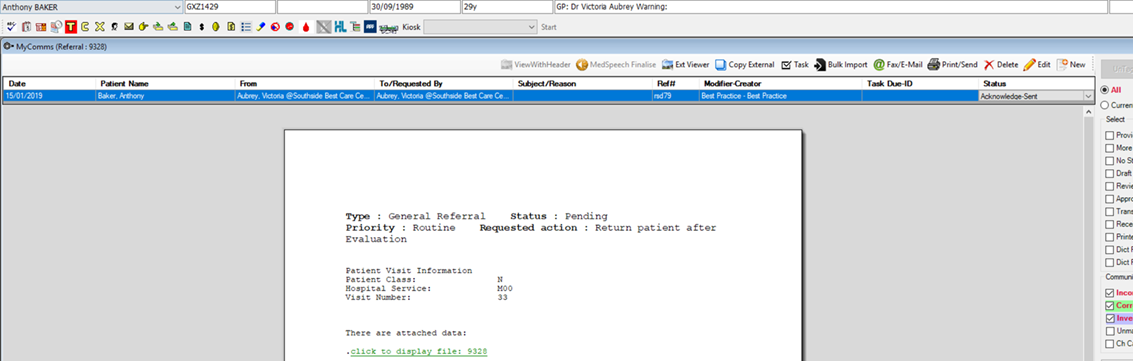
When a new Correspondence/Referral is received through RSD, the message will appear with the Ref# stated as a number and RSD, and have 'Acknowledged Sent' status. Bp VIP.net will automatically send the sender the Acknowledgement of Receipt message.
Click the Inbox button.
The RSD message will have a rsd** displayed in the Ref# column.
Troubleshooting
If you are not receiving letters or lab results from some referring doctors, your HealthLink settings will need to be changed to accept the following formats:
|
HealthLink folder |
Processor Parameters |
|---|---|
|
LAB24NZ |
HL7 v2.4 |
|
LAB |
HL7 v2.2 |
|
REFERRAL |
HL7 v2.4 |
What do I do next?
Last modified: 22 September 2023



 AU
AU  support@bpsoftware.net