
IMPORTANT Some or all of the functionality described in this article is available only in Beta and will be released to all Bp Omni customers soon.
This article explains how to set a Base Appointment Interval in Bp Omni.
A Base Appointment Interval lets your practice choose a Default Appointment Length other than the standard 15 minutes and sets the time slot display shown on the Appointment book.
NOTE Base appointment intervals apply across the whole practice. They cannot be set by provider or by location.
Before you begin
Base Appointment Intervals let a practice set a default appointment time slot instead of the standard 15 minutes. Once a base appointment interval is set, every appointment type in the practice must have a default duration that is a multiple of that interval, and the calendar display updates to match.
Use Base Appointment Intervals when:
- Default appointment time slots are needed for a period other than 15 minutes.
- The time slot display length shown on the calendar needs to change.
Before changing the Base Appointment Interval, complete the following steps:
- Contact the Support team for assistance.
- Review the all the information and instructions provided in this Knowledge Base article.
- Finalise all Incomplete Clinical Notes before changing the Base Appointment Intervals. These can be reviewed via Admin > Recent patients.
To change the Base Appointment Intervals, users must have Practice Information permissions set to Administrator. This permission is included by default with the Practice Manager, Owner, and Administrator roles.

See Configure Business Roles and Security Permissions for more information.
Every appointment length and appointment type duration must be a factor of the base appointment interval selected.
For example:
- A base appointment interval of 5 minutes allows appointment lengths of 5, 10, 15minutes etc.
- This is the most granular option; appointment lengths of 6 or 12 minutes would not be valid.
- A base appointment interval of 10 minutes allows appointment lengths of 10, 20, 30minutes, etc.
- A base appointment interval of 12 minutes allows appointment lengths of 12, 24, 36minutes, etc.
Appointment durations can be viewed in Settings > Config > Appointment types. If BHB is enabled for your practice, the equivalent BHB appointment type durations are shown as well; all durations will be a multiple of the base interval.

When the Base Appointment Interval is changed, Bp Omni recalculates the default duration of every appointment type so it fits the new interval, and the appointment book's calendar slots update to match.
NOTE Appointments already booked are not affected. Any appointment booked or edited after the change must have a length that is a multiple of the new base appointment interval.
For example: a 25-minute Standard appointment, changing from a 5-minute base appointment interval to a 6-minute base appointment interval.
- Divide the current duration by the old base appointment interval to find the number of intervals it used: 25 minutes ÷ 5 minutes = 5 intervals.
- If this doesn't divide evenly, round to the nearest whole number of intervals.
- Multiply the number of intervals by the new base appointment interval: 5 intervals × 6 minutes = 30 minutes.
- Bp Omni updates the appointment type to this new duration. The Standard appointment changes from 25 to 30 minutes.
This recalculation applies to appointment type default durations only, for use in future bookings. It does not change any appointment that has already been booked, and patients are not notified because of it.
Examples: How existing appointment lengths change
The table below shows how appointment type default durations convert when the base appointment interval changes, based on a practice currently using a 15-minute base interval.
|
Current appointment length |
Number of 15-minute intervals |
New length at a 10-minute base interval |
New length at a 20-minute base interval |
|---|---|---|---|
|
15 minutes |
1 |
10 minutes |
20 minutes |
|
30 minutes |
2 |
20 minutes |
40 minutes |
|
45 minutes |
3 |
30 minutes |
60 minutes |
|
60 minutes |
4 |
40 minutes |
80 minutes |
Appointment type durations set specifically for Online Bookings do not update automatically when the base appointment interval changes. These need to be updated manually.

The Name, Duration and Participant fields for system-managed Appointment types (for example, Standard and Long appointments) cannot be edited directly. Instead, their duration is set as a fixed number of base appointment intervals:
|
Appointment type |
Number of intervals |
|---|---|
|
Standard |
1 |
|
Long |
2 |
|
Recall |
1 |
|
Record Update |
1 |
For example, with a 10-minute base appointment interval, a Standard appointment is 10 minutes and a Long appointment is 20 minutes.
Set the base appointment interval
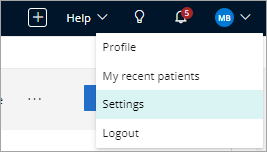
- Click your profile icon in the top-right corner of the screen and select Settings.
- From the list of options on the left of the screen, click Practice & locations.
- Scroll down to Appointments. The current setting is shown under Length base interval.
- Click Change the appointment length base interval.
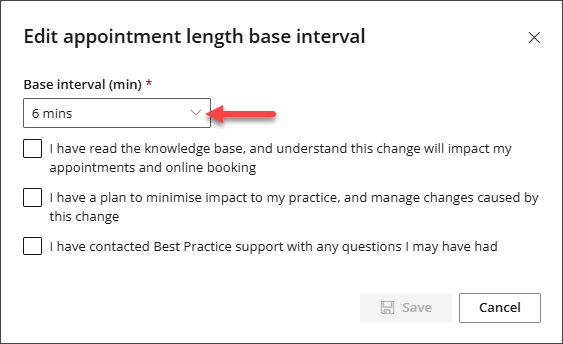
- In the Edit appointment length base interval window, select a Base interval (min) from the available options: 5, 6, 10, 12, 15, 20, 30 or 60 minutes.
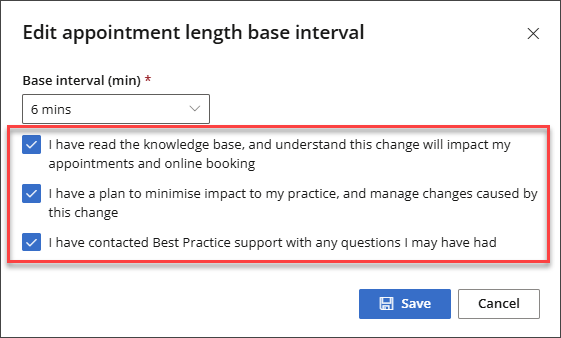
- Select all three checkboxes to confirm:
- I have read the knowledge base, and understand this change will impact my appointments and online booking.
- I have a plan to minimise impact to my practice, and manage changes caused by this change.
- I have contacted Best Practice support with any questions I may have had.
- Click Save.


Once saved:
- The Appointment book updates to display the new base appointment interval. For example, selecting 10 minutes will show the appointment book in 10-minute increments.
- Time slot availability in the Add / Edit appointment modal updates to align with the new base appointment interval.


IMPORTANT If your practice uses Online Bookings, it can take up to 24 hours for a base appointment interval change to be reflected in the appointment slots available to patients.
Troubleshooting
Reverting a base appointment interval change
A Base Appointment Interval change can be reverted by changing it back to its original value. Because appointments that are already booked are never altered by a base appointment interval change, reverting does not affect them either. Reverting recalculates appointment type default durations again, this time to match the original interval.
Last updated: 17 September 2026.



 AU
AU 